Basic git graph example
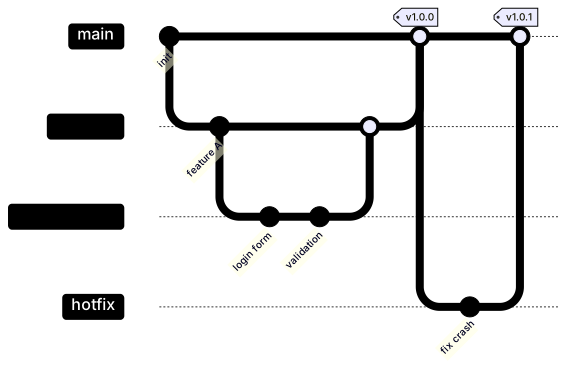
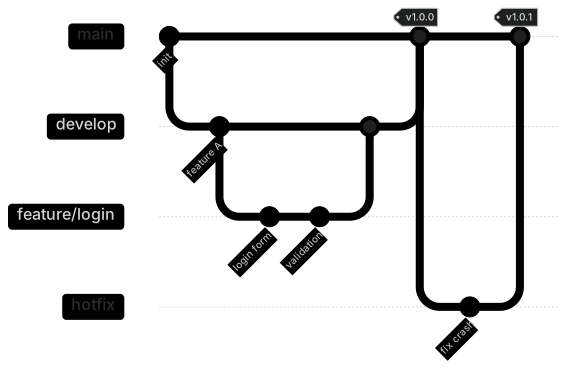
gitGraph
    commit id: "init"
    branch develop
    checkout develop
    commit id: "feature A"
    branch feature/login
    checkout feature/login
    commit id: "login form"
    commit id: "validation"
    checkout develop
    merge feature/login
    checkout main
    merge develop tag: "v1.0.0"
    branch hotfix
    checkout hotfix
    commit id: "fix crash"
    checkout main
merge hotfix tag: "v1.0.1"Mermaid git graphs draw commit history as a branching diagram. You write Git-like commands — commit, branch, checkout, merge — and get a clear picture of how work flows between branches.
They're the best way to explain a branching strategy such as GitFlow or trunk-based development in contributor guides, or to illustrate what a rebase or cherry-pick does.
When to use a git graph
- Documenting branching strategies in CONTRIBUTING.md
- Teaching Git concepts
- Explaining release and hotfix processes
- Post-mortems of merge mistakes
Git Graph syntax reference
| Syntax | What it does |
|---|---|
gitGraph | Start a git graph (default branch is main). |
commit / commit id: "x" | Add a commit, optionally with a custom id. |
commit type: HIGHLIGHT | REVERSE | Special commit styles. |
commit tag: "v1.0" | Tag a commit. |
branch name | Create a branch and switch to it. |
checkout name / switch name | Switch to an existing branch. |
merge name | Merge a branch into the current branch. |
cherry-pick id: "x" | Cherry-pick a commit by id. |
Git Graph examples
Trunk-based development
Short-lived branches merged quickly back into main.
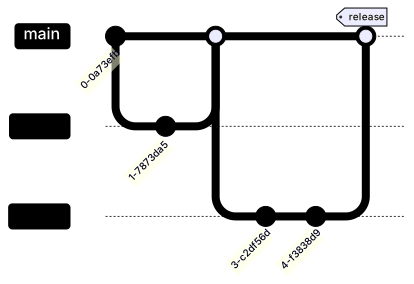
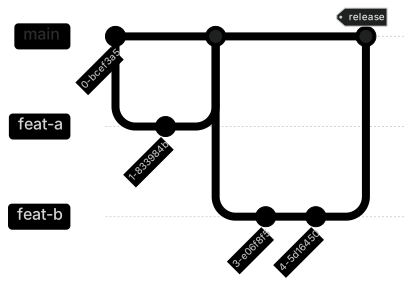
gitGraph
    commit
    branch feat-a
    commit
    checkout main
    merge feat-a
    branch feat-b
    commit
    commit
    checkout main
merge feat-b tag: "release"Tips and best practices
- Give important commits ids so they can be referenced by cherry-pick and read easily.
- Use tags for releases to show where versions were cut.
- Configure orientation with an init directive (gitGraph LR: or TB:) for long histories.
Generate a git graph with AI
Not sure where to start? Describe what you need and the AI git graph generator writes the Mermaid code for you. Try prompts like:
- “GitFlow with release and hotfix branches”
- “Feature branch with rebase onto main”
- “Monorepo release train”
Git Graph templates
Git Graph FAQ
Can Mermaid git graphs show cherry-picks?
Yes. Give the source commit an id and use cherry-pick id: "that-id" on the target branch.
How do I rename the main branch?
Set mainBranchName in the gitGraph configuration through an init directive, for example %%{init: {'gitGraph': {'mainBranchName': 'trunk'}}}%%.