Basic flowchart example
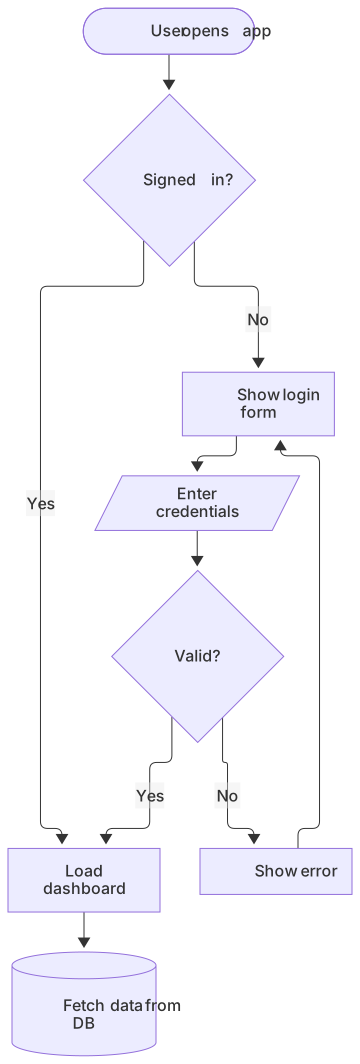
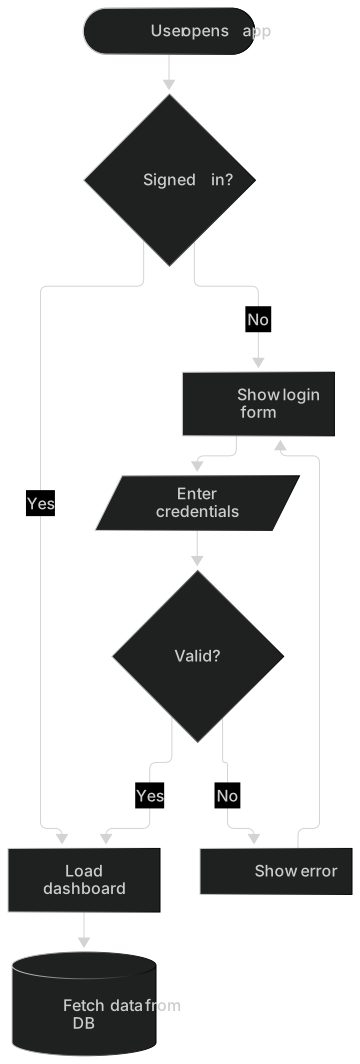
flowchart TD
    A([User opens app]) --> B{Signed in?}
    B -- Yes --> C[Load dashboard]
    B -- No --> D[Show login form]
    D --> E[/Enter credentials/]
    E --> F{Valid?}
    F -- Yes --> C
    F -- No --> G[Show error]
    G --> D
C --> H[(Fetch data from DB)]A Mermaid flowchart turns a few lines of plain text into a clean process diagram. You declare nodes, connect them with arrows, and Mermaid lays everything out automatically, so you never have to drag boxes around or fix crooked connectors again.
Flowcharts are the most popular Mermaid diagram type because they work everywhere: README files on GitHub and GitLab, Notion and Obsidian notes, Confluence pages, technical design docs and pull-request descriptions. Because the source is text, a flowchart lives next to your code, diffs cleanly in version control and stays easy to update.
When to use a flowchart
- Documenting business processes and approval workflows
- Explaining algorithms and decision logic in code reviews
- Onboarding guides and support troubleshooting trees
- CI/CD pipelines and deployment runbooks
Flowchart syntax reference
| Syntax | What it does |
|---|---|
flowchart TD | Start a flowchart. Direction: TD/TB (top-down), BT, LR (left-right) or RL. |
A[Text] | Rectangle node with id A and a label. |
A(Text) / A([Text]) | Rounded rectangle / stadium (pill) shape. |
A{Text} | Diamond — use for decisions. |
A[(Text)] / A((Text)) | Database cylinder / circle. |
A[/Text/] | Parallelogram — input or output. |
A --> B | Arrow from A to B. |
A -- label --> B or A -->|label| B | Arrow with a text label. |
A -.-> B / A ==> B | Dotted arrow / thick arrow. |
subgraph Title ... end | Group nodes into a labelled box. |
classDef hot fill:#fee,stroke:#f00 | Define a reusable style; apply with A:::hot. |
%% comment | Comment line, ignored by the renderer. |
Flowchart examples
Left-to-right pipeline with subgraphs
Subgraphs group related steps. Here a CI/CD pipeline is split into build and deploy stages.


flowchart LR
    subgraph Build
      A[Commit] --> B[Install deps] --> C[Run tests]
    end
    subgraph Deploy
      D[Build image] --> E[Push to registry] --> F[Roll out]
    end
    C -->|tests pass| D
C -.->|tests fail| X[Notify team]Styled decision tree
Use classDef to color nodes by meaning so readers scan the result faster.
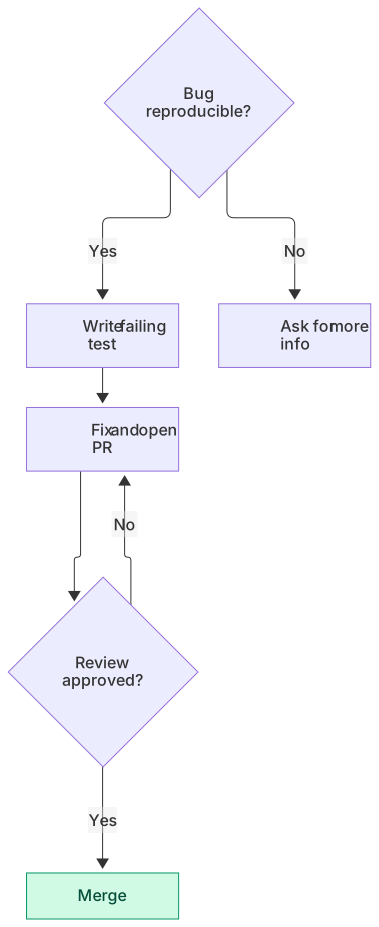
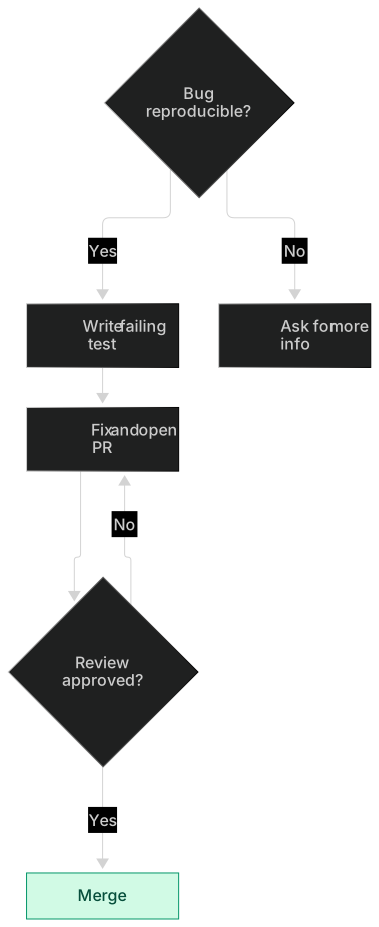
flowchart TD
    Q{Bug reproducible?} -->|Yes| W[Write failing test]
    Q -->|No| I[Ask for more info]
    W --> F[Fix and open PR]
    F --> R{Review approved?}
    R -->|Yes| M[Merge]:::ok
    R -->|No| F
classDef ok fill:#d1fae5,stroke:#059669,color:#064e3bTips and best practices
- Pick the direction that matches reading order: LR for pipelines and timelines, TD for hierarchies and decision trees.
- Keep node ids short (A, B, login) and put the human text in the label — ids must be unique and cannot contain spaces.
- Wrap labels containing special characters such as parentheses or quotes in double quotes: A["Call api(v2)"].
- Avoid the bare word end in lowercase as a node label — it closes subgraphs. Use End or "end" instead.
- If the layout gets tangled, split the diagram into subgraphs or several smaller diagrams.
Generate a flowchart with AI
Not sure where to start? Describe what you need and the AI flowchart generator writes the Mermaid code for you. Try prompts like:
- “User signup flow with email verification and error handling”
- “Order fulfilment process from checkout to delivery”
- “Incident response runbook for a production outage”
Flowchart templates
A login flow with credential checks, two-factor authentication, lockout and password reset branches.
Microservices overview with API gateway, services, message broker, databases and observability.
Continuous integration and delivery pipeline from commit through tests, build, staging and production with approvals.
Customer support process from ticket creation through triage, escalation and resolution with SLA checks.
HR onboarding flowchart from signed offer through equipment, accounts, first-day schedule and 90-day check-in.
Flowchart for handling production incidents: detection, triage, mitigation, communication and post-mortem.
Flowchart FAQ
What is the difference between graph and flowchart in Mermaid?
Both keywords render the same kind of diagram. flowchart is the newer keyword and supports extra features such as more node shapes and better subgraph handling, so it is recommended for new diagrams.
How do I change the direction of a Mermaid flowchart?
Put the direction after the keyword: flowchart TD (top-down), flowchart LR (left to right), flowchart BT (bottom-up) or flowchart RL (right to left). Subgraphs can also set their own direction with a direction LR line.
How do I add a link or click action to a node?
Use click A "https://example.com" to make node A a hyperlink. In strict security mode (used for shared diagrams on MermaidViewer) JavaScript callbacks are disabled, but plain links still work.
Can I export a Mermaid flowchart as an image?
Yes. Paste your code into the MermaidViewer editor and use Export to download a PNG (with a transparent or solid background), a scalable SVG or a PDF.