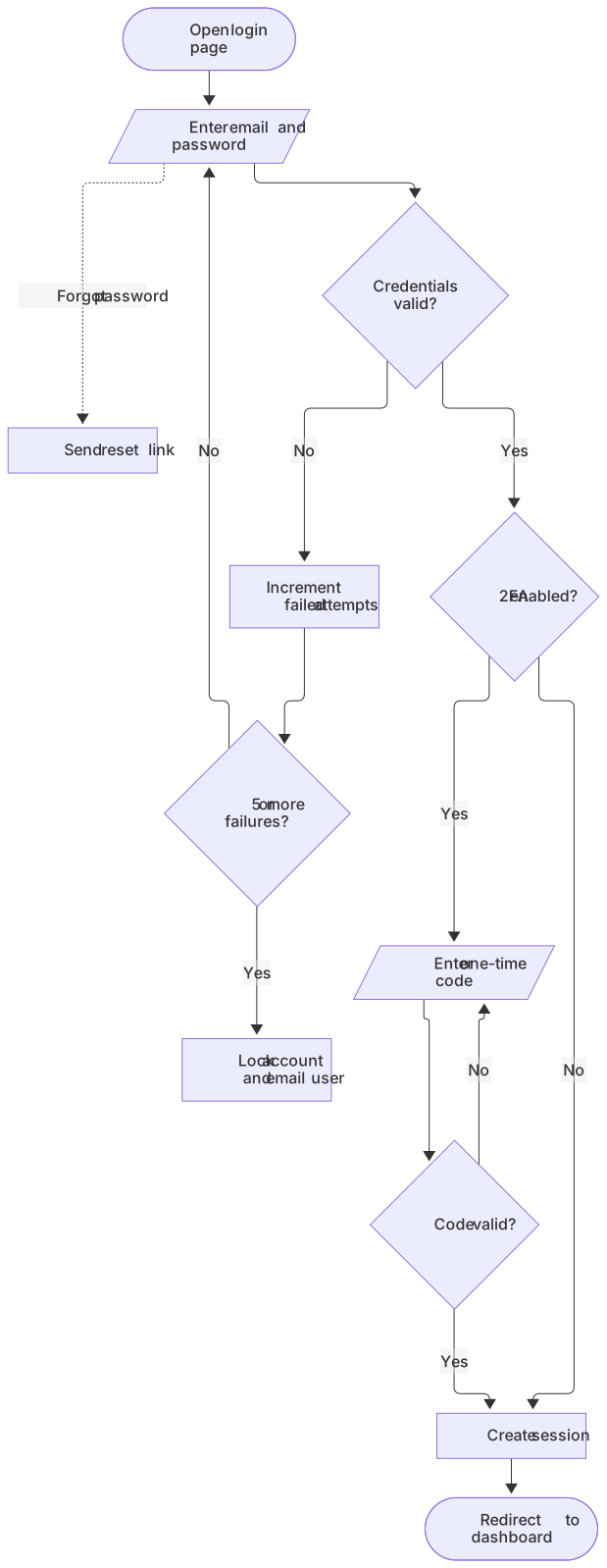
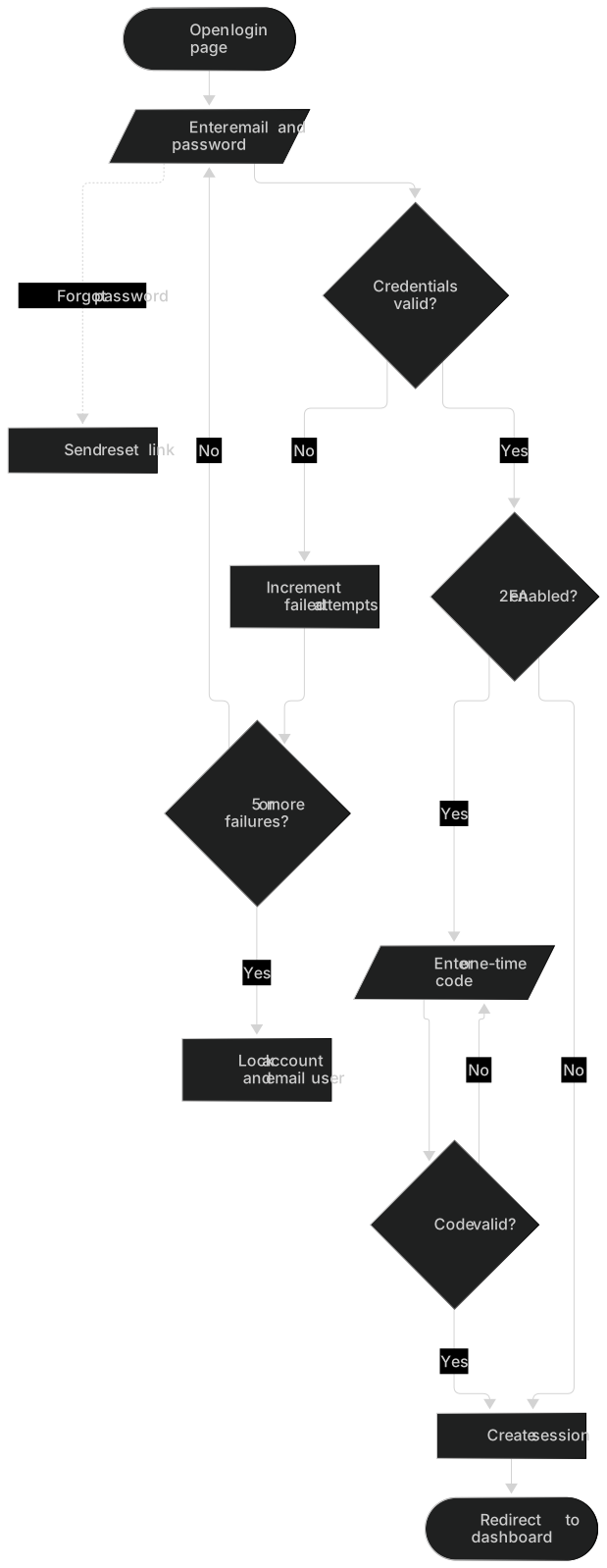
flowchart TD
    A([Open login page]) --> B[/Enter email and password/]
    B --> C{Credentials valid?}
    C -- No --> D[Increment failed attempts]
    D --> E{5 or more failures?}
    E -- Yes --> F[Lock account and email user]
    E -- No --> B
    C -- Yes --> G{2FA enabled?}
    G -- Yes --> H[/Enter one-time code/]
    H --> I{Code valid?}
    I -- No --> H
    I -- Yes --> J[Create session]
    G -- No --> J
    J --> K([Redirect to dashboard])
B -. Forgot password .-> L[Send reset link]About this template
Authentication flows are one of the most frequently documented processes in software teams. This template covers the happy path, invalid credentials, account lockout after repeated failures, optional two-factor authentication and the password reset path, so it works as a starting point for security reviews and onboarding docs.
How to customise it
- Replace the 2FA step with SMS, TOTP or passkeys
- Add SSO providers as an alternative entry point
- Change the lockout threshold label to match your policy
This template is a Mermaid flowchart. See the flowchart page for the full syntax reference and more examples.
Frequently asked questions
How do I use this user login flowchart template?
Click "Use this template" to open it in the MermaidViewer editor. Edit the Mermaid code on the left and the diagram updates instantly. No account is needed.
Can I export the template as an image?
Yes. In the editor use Export to download PNG, SVG or PDF, or copy the image to your clipboard. You can also copy the code as a Markdown block for GitHub, GitLab or Notion.
Can AI customise this template for me?
Yes. Open the AI assistant (Ctrl/Cmd+K) and describe the change, for example "Replace the 2FA step with SMS, TOTP or passkeys". The updated diagram streams into the editor.