This mermaid gitgraph tutorial builds a branch picture the way you would explain it on a whiteboard: one commit, then a branch, then the merge back. The diagram is text, so it can live in CONTRIBUTING.md and change when the policy changes. The command list is on the mermaid git graph page. A full GitFlow layout you can fork is the branching template.
You are drawing a story, not a dump of git log. Real histories have hundreds of commits. A useful graph has the commits that teach the rule: where features start, where releases are cut, where a hotfix lands.
The four commands
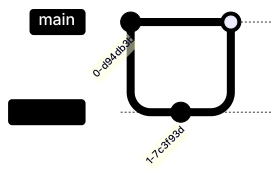
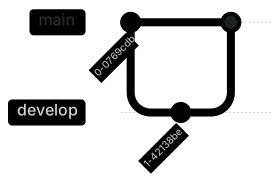
Open with gitGraph. The default branch is main. commit adds a commit on whatever branch is current. branch creates a branch. checkout switches to a branch that already exists. merge brings another branch into the one you have checked out.
gitGraph
  commit
  branch develop
  checkout develop
  commit
  checkout main
merge developRead it in order. The first commit is on main, because that is the branch you start on. branch develop creates develop from that commit. The explicit checkout develop is there so a reader can see the switch. The next commit is therefore on develop. checkout main goes back. merge develop merges develop into main, because merge always targets the current branch.
That last sentence is the one people get wrong. They write merge and imagine it works like a sentence ("merge main into develop") regardless of checkout. It does not. Checkout the branch that should receive the commits, then name the branch you are bringing in.
If you skip the checkout after branch, current Mermaid builds also switch to the new branch for you. Write the checkout anyway. The file should read like a script a new teammate can follow, and you will not have to remember which version auto-switches.
Names, tags, and highlights
A bare commit gets an automatic id. Give an id when you will talk about the commit, cherry-pick it, or point at it in the paragraph under the diagram. Ids are short labels, not SHAs. commit id: "login" is enough. Long sentences overflow the node.
commit tag: "v1.0" draws a tag. Use tags for releases and for nothing else. A tag on every commit is a noisy legend.
commit type: HIGHLIGHT and commit type: REVERSE change the node style so one commit stands out. Use highlight for the bugfix you are discussing. Use it once. A graph of highlighted commits is a graph with no emphasis.
commit id: "fix crash"
commit tag: "v1.0.1"
commit id: "audit" type: HIGHLIGHT
You can combine id and tag on the merge line, which is how a release branch usually lands: merge release/1.0 tag: "v1.0". The tag sits on the merge commit on the branch you checked out.
Branch names may contain slashes. feature/auth and hotfix/1.0.1 match the names people already use. Avoid spaces. Avoid main as a feature name. If your repo's default branch is trunk or master, set it in frontmatter or an init directive rather than renaming the branch halfway through the story.
%%{init: {"gitGraph": {"mainBranchName": "trunk"}}}%%
gitGraph
  commit
Put that directive in a fence of its own when you try it. The quotes are JSON quotes. A single smart quote copied from a chat will fail the parse, and the error looks like a branch problem.
A GitFlow story
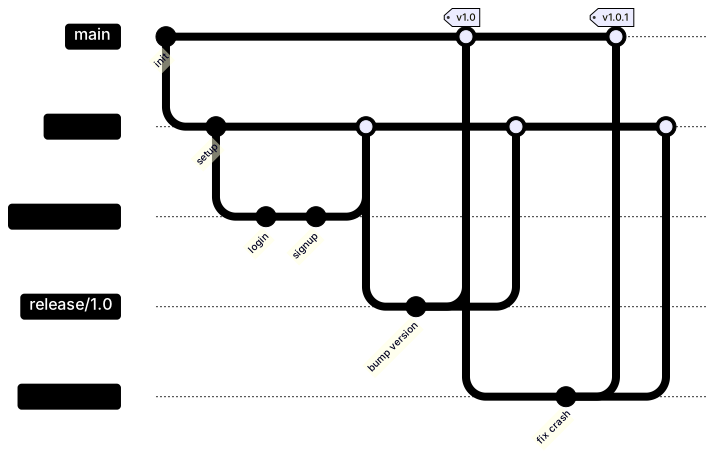
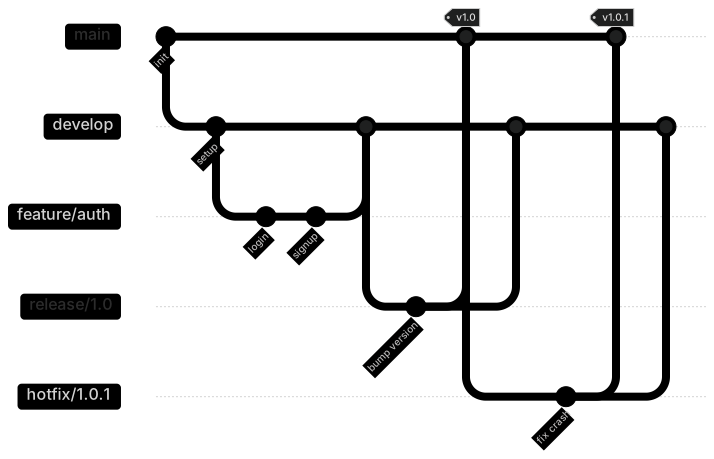
GitFlow is a lot of arrows until you see the order. Features branch from develop. A release branch is cut from develop, stabilized, and merged to main with a tag. The same release is merged back to develop so the bump is not lost. A hotfix branches from main, because production is main, and it merges back to main and to develop.
gitGraph
  commit id: "init"
  branch develop
  checkout develop
  commit id: "setup"
  branch feature/auth
  checkout feature/auth
  commit id: "login"
  commit id: "signup"
  checkout develop
  merge feature/auth
  branch release/1.0
  checkout release/1.0
  commit id: "bump version"
  checkout main
  merge release/1.0 tag: "v1.0"
  checkout develop
  merge release/1.0
  checkout main
  branch hotfix/1.0.1
  checkout hotfix/1.0.1
  commit id: "fix crash"
  checkout main
  merge hotfix/1.0.1 tag: "v1.0.1"
  checkout develop
merge hotfix/1.0.1Walk the policy while you look at it.
Features do not merge straight to main. If someone opens a pull request from feature/auth into main, this picture says no. The merge into develop is the integration step. Say that in the contributing guide next to the fence, or the picture will be treated as decoration.
The release branch has one commit, bump version. Real release branches also have fix commits. Add them if your story is "what happens during code freeze." Leave them off if your story is "where the branch is cut." One story per diagram.
The hotfix starts after checkout main. If you branch the hotfix while develop is checked out, you have drawn a bug: the fix would contain unreleased develop commits. This is the most expensive mistake in the file, and it is easy to see once the checkouts are written down. I have reviewed incident docs where the prose said "branched from production" and the diagram branched from develop. Trust the checkouts.
Merging the hotfix back to develop is not optional in this model. Skip that merge and the next release resurrects the crash. If your team cherry-picks instead of merging, draw the cherry-pick. Do not draw a merge you do not perform.
Cherry-pick, when you refuse the whole branch
A cherry-pick copies one commit by id onto the current branch. The source commit needs an id. Checkout the destination first.
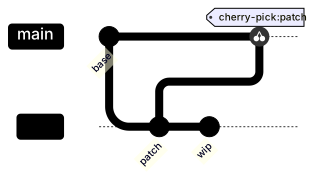
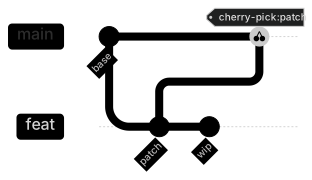
gitGraph
  commit id: "base"
  branch feat
  checkout feat
  commit id: "patch"
  commit id: "wip"
  checkout main
cherry-pick id: "patch"Here patch lands on main and wip does not. That is the whole reason to cherry-pick. If you wanted both commits, merge the branch. Cherry-pick diagrams that include every commit on the branch are merges with extra steps.
Ids must be unique in the diagram. Two commit id: "patch" lines make the cherry-pick ambiguous. If you need two patches, call them patch-1 and patch-2.
Trunk, when the policy is simpler
Plenty of teams do not run GitFlow. Draw the policy you have. A trunk diagram is short-lived branches off main, merged back the same day, with a tag when you release. The contrast with the previous picture is the teaching: the commands are the same, the checkouts are different.
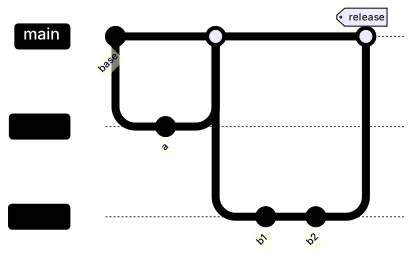
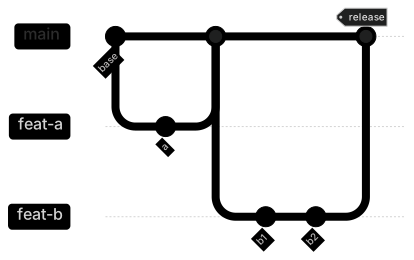
gitGraph
  commit id: "base"
  branch feat-a
  checkout feat-a
  commit id: "a"
  checkout main
  merge feat-a
  branch feat-b
  checkout feat-b
  commit id: "b1"
  commit id: "b2"
  checkout main
merge feat-b tag: "release"If your team rebases onto main before merging, say so under the diagram. Mermaid's graph shows the merge topology you write. It will not invent a rebase. A caption that says "we rebase, this picture shows the result after the rebase" prevents a pedantic argument in review.
gitGraph LR: lays the history left to right, which suits a long trunk. Top to bottom is the default and suits a short GitFlow with many branch rows. Switch orientation when labels collide, not because a theme prefers horizontal pictures.
Mistakes that tell the wrong Git story
Merge with the wrong checkout. checkout develop then merge main merges main into develop. That may be what you want for a hotfix backport. It is not how you release. Say the sentence "I am standing on X and I am receiving Y" before each merge.
A branch that never merges and is not supposed to. Feature branches left open in the diagram look like abandoned work. Either merge them or cut them from the picture. A tutorial graph is not a status report of open pull requests.
Commit messages as ids. commit id: "Fix the crash when the cart is empty on iOS 18" blows the layout. Put the long message in the paragraph. Keep the id to two or three words.
Drawing every merge commit from a real repo. Exporting git log --graph into twenty branches produces a plate of noodles. Pick the path that illustrates the rule. Link the repository for the rest.
Forgetting the tag on the release merge. The version is why the release branch exists. tag: "v1.0" on the main merge is the dot product and docs will quote. A tag on the release branch and not on main tags the wrong commit if you keep committing on the release branch after the tag. Tag the merge you ship.
Using a flowchart instead. Boxes and arrows can imitate Git, and they lose the automatic lanes. If the topic is branches and commits, stay in gitGraph. If the topic is the CI jobs that run on each branch, that is a flowchart, and it should link here for the branch policy.
A broken opening looks like this:
gitGraph
  merge develop
  branch feature auth
  commit id: Fix it
merge develop runs before develop exists. The branch name has a space. The id has a space and no quotes. Any one of those fails the render. Create the branch, quote the id, then merge.
The editor highlights the failing line. The syntax error guide covers the cases where the message points at the directive above the graph, which is usually the init JSON.
What to publish, and where
Put one graph in the contributing doc, next to the prose rule it illustrates. A second graph belongs in an incident note when a bad merge needs a picture. Do not collect a gallery of historical releases in the README. Last year's hotfix is not a policy.
Review the graph like code. Check the checkout before every commit and every merge. Check that tags sit on the commits you actually ship. Check that branch names match the names in your hosting settings, including case. Feature/Auth and feature/auth are different branches, and some hosts will surprise you.
When a teammate describes a policy in a paragraph ("we branch from develop, release from a release branch, hotfixes from main"), paste that paragraph into the AI diagram generator and ask for a gitGraph. Then fix the checkouts yourself. Generated graphs often merge into the branch that was convenient to type. Your policy is the checkout order, and a model does not feel the outage that follows a hotfix branched from develop.
Two features at once
The graphs above are single-file stories. Real weeks have two features open. Draw that only when the policy question is "are these branches allowed to depend on each other?" If feature B must start from feature A, show B branching from A, and write the reason under the picture. If they are independent, both branch from develop or from main and merge back without merging into each other.
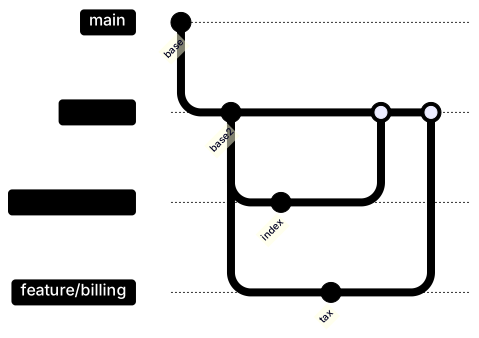
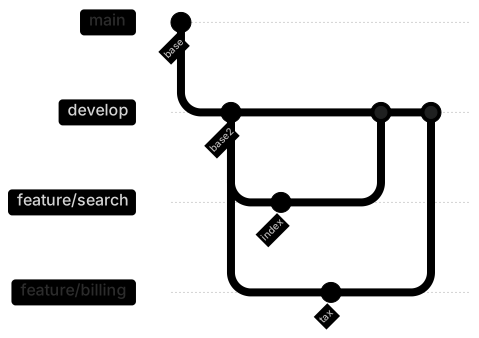
gitGraph
  commit id: "base"
  branch develop
  checkout develop
  commit id: "base2"
  branch feature/search
  checkout feature/search
  commit id: "index"
  checkout develop
  branch feature/billing
  checkout feature/billing
  commit id: "tax"
  checkout develop
  merge feature/search
merge feature/billingThe order of the two merges is a choice. Search lands first here. If billing had to wait for search, the picture would show billing checked out and search merged into it, which is a different policy and usually a smell. Call that out in the caption so nobody copies it as the normal path.
Parallel branches are where layout gets cramped. Short ids help more than theme tweaks. If two labels overlap, shorten the ids before you reach for colors. A left-to-right graph (gitGraph LR:) gives long trunks more room and gives stacked feature rows less. Try the orientation in the editor and keep the one that a new hire can read without zooming.
A short checklist before you merge the doc
- The first commit is on the default branch your repo really uses.
- Every
commitsits under the checkout you intend. - Every
mergenames a branch that already has a commit. - Release tags are on main, on the merge you ship.
- Hotfixes reach every long-lived branch that will cut a future release.
- The paragraph under the fence states the one rule the picture exists to teach.
Open the branching template if you want GitFlow already written, delete the branches you do not use, and rename the tags to your scheme. Keep the file short enough that a new hire will read it. A mermaid gitgraph tutorial that shows twelve features teaches nothing. One feature, one release, and one hotfix teach the policy.
When you paste the fence into a pull request description, add one sentence above it that names the rule you changed. "Hotfixes now branch from main" is a reviewable claim. A graph with no sentence invites reviewers to debate the layout. The layout is Mermaid's job. The checkouts are yours. If the description and the checkouts disagree, fix the checkouts, because the next reader will trust the picture when the incident is already underway.
Frequently asked questions
How do I draw a git branch diagram in Mermaid?
Start with gitGraph. commit adds a commit on the current branch, branch creates a branch, checkout switches to it, and merge brings it back.
Can I name commits?
Yes. commit id: "v1" or commit tag: "release" adds a label. Keep ids short so the graph stays readable.
Does GitHub render git graphs?
GitHub renders gitGraph in mermaid fences on current Markdown. If a host is on an older Mermaid build, export an SVG.