You embed mermaid in html by loading the mermaid package on the page, putting the diagram source in an element with the class mermaid, and calling mermaid.run() after you initialize the library. That is the direct approach, and it belongs on a page you control. The other approach is an iframe copied from a MermaidViewer share link, which is the right one when a signed-in author publishes a public diagram and several pages should show the latest saved version.
Both put a picture on a site. They solve different maintenance problems. The script approach keeps the source in your repository, next to the HTML. The iframe keeps the source in MermaidViewer, and the page only stores the embed code. Pick one per diagram so nobody has to guess which copy is current.
What the page has to do
Mermaid in the browser is a library plus a DOM node. The library parses the text and replaces the node's contents with an SVG. The node needs class="mermaid" so mermaid.run() can find it. The text inside the node is the diagram, starting with a keyword such as flowchart or sequenceDiagram. It is not a Markdown fence. Backticks around the source will show up as a parse error, because this page is HTML, not a Markdown host.
Initialize before you run. The setup this guide uses is:
mermaid.initialize({ startOnLoad: false, securityLevel: "strict" })
mermaid.run()
startOnLoad: false means the library waits for you. You call mermaid.run() when the nodes are in the document. That avoids a race where the library scans the page before your template has written the diagram. securityLevel: "strict" refuses the features that can run script from a diagram, including click callbacks and HTML labels. Use strict on any page that might render a diagram you did not type yourself, and use it on public pages even when you did. Loose mode is how a diagram becomes an XSS bug.
You can load the library two ways. Import the mermaid package from your bundler, or add a script tag pointing at the mermaid build you pin. Pin the build. A floating "latest" URL will change under you and break a diagram that used to render. This guide does not name a CDN version on purpose. You choose the file, you commit the choice, and you upgrade when you mean to.
An iframe is the other embed. A signed-in user makes a diagram public and copies the embed code. The iframe points at that public diagram and shows the latest saved version, so an edit in the editor updates every page that embeds it. The page does not need the mermaid package at all. It needs the iframe, a width, and a height.
Add a diagram to a page, step by step
Start with a static file you can open locally. A framework page is fine too, as long as you can see the HTML that actually ships.
- Put the diagram text in a
<pre>or<div>withclass="mermaid". One diagram per element. - Load the mermaid package with an import or a pinned script tag.
- Call
mermaid.initializewithstartOnLoadset tofalseandsecurityLevelset to"strict". - Call
mermaid.run()after those elements exist. - Open the page, read the SVG, and check the browser console if the element is still showing source.
- If several pages need a diagram someone edits without a deploy, use a public iframe instead of copying the source.
A page-shaped example, with the import left as the package name rather than a made-up URL:
<pre class="mermaid">
flowchart LR
  A[Write] --> B[Preview]
</pre>
<script type="module">
  import mermaid from "mermaid";
  mermaid.initialize({ startOnLoad: false, securityLevel: "strict" });
  await mermaid.run();
</script>
import mermaid from "mermaid" assumes your bundler resolves the mermaid package. On a page with no bundler, use a script tag whose src is the mermaid build you pin, then call the global mermaid object the same way, without the import. Run that second script after the library script, or the global will not exist yet.
<script src="THE_MERMAID_BUILD_YOU_PIN"></script>
<script>
  mermaid.initialize({ startOnLoad: false, securityLevel: "strict" });
  mermaid.run();
</script>
mermaid.run() with no arguments renders every element that has the class and has not been rendered yet. Call it again after you insert a new diagram into the page. Calling it on a schedule, on a timer, is unnecessary and will fight itself.
Draft the source in the editor before you paste it into the <pre>. The editor updates on each keystroke. The page updates when you reload. That difference matters once the diagram is longer than the starter. The AI diagram generator can write the first version from a sentence. You still read the labels, and you still keep securityLevel on strict.
A worked example
A status page for a signup flow is a fair real embed. The HTML around it can be a heading and a paragraph. The diagram is the order.
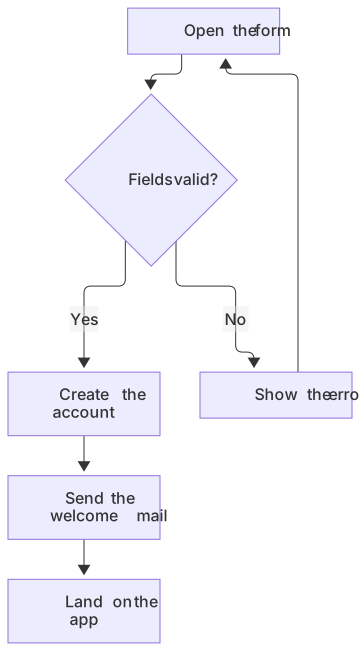
flowchart TD
  A[Open the form] --> B{Fields valid?}
  B -->|Yes| C[Create the account]
  B -->|No| D[Show the error]
  C --> E[Send the welcome mail]
  E --> F[Land on the app]
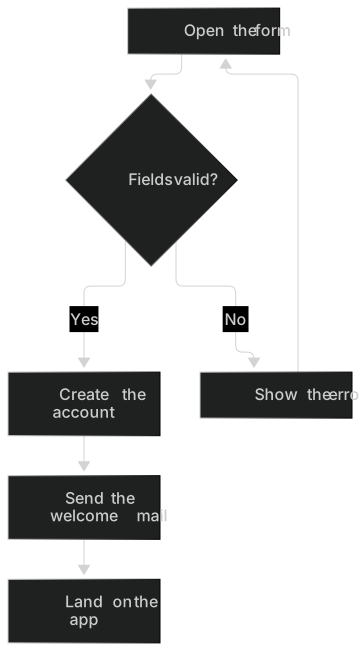
D --> AThe loop from the error back to the form is the part a marketing page tends to hide. Put it in the diagram if support has to explain it. Keep the labels short. The column on a marketing site is often narrower than a docs page, and a long label becomes a tall SVG that pushes the footer down.
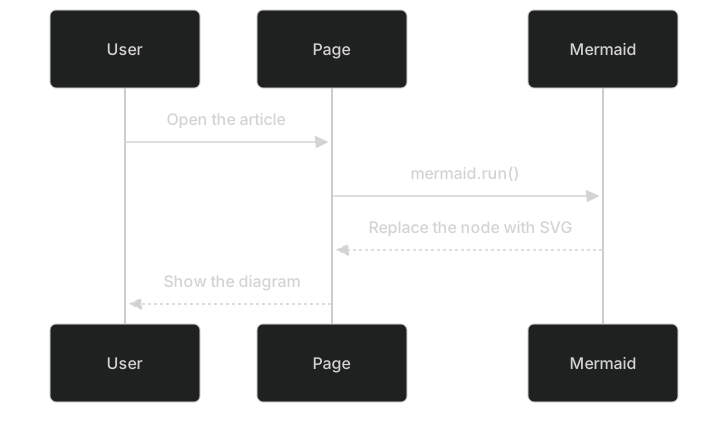
Here is the same moment as a sequence, which you would use if the page is for engineers rather than for support.
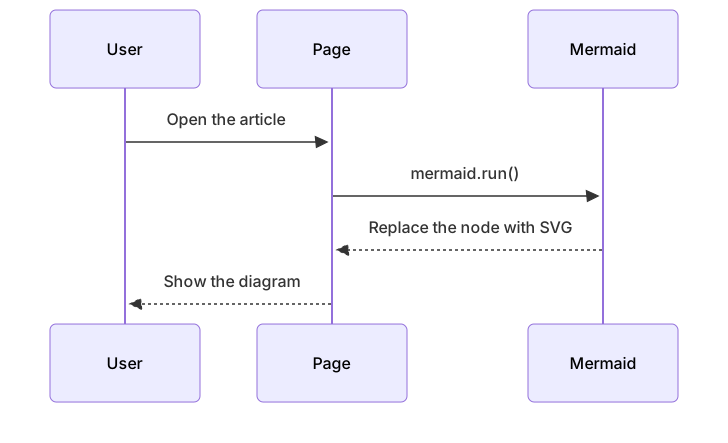
sequenceDiagram
  participant U as User
  participant P as Page
  participant M as Mermaid
  U->>P: Open the article
  P->>M: mermaid.run()
  M-->>P: Replace the node with SVG
P-->>U: Show the diagramIn the HTML, those are two elements, each with class="mermaid", each with one diagram. A single element that contains both keywords fails the parse, and strict mode will not quietly skip the second one for you. The flowchart syntax page is the reference for the decision chart. The sequence is a different first line, in a different element.
For the iframe path, the page holds the embed code a signed-in author copied after making the diagram public. Give it a title, a height, and loading="lazy" if the diagram is below the fold.
<iframe
  src="PUBLIC_EMBED_URL"
  width="100%"
  height="480"
  style="border:0"
  loading="lazy"
  title="Signup flow diagram"></iframe>
The src is the public embed URL from the share dialog, not a guess you assemble by hand. If the diagram 404s, it is not public, or the id changed. The iframe updates when the saved diagram updates. Your HTML deploy does not have to change for a label edit, which is the reason to choose an iframe. It is also the reason to be careful: a bad edit is live on every page at once.
Limits and security
Strict mode is the limit that protects you. It also removes features demo pages love to turn on.
- Click callbacks do not run. Put links in the HTML next to the diagram.
- HTML labels do not render as HTML. If a label needs a special character, quote it in the Mermaid source instead of embedding markup.
- Diagrams from users, comments, or a CMS are untrusted. Keep
securityLevelon"strict". Do not switch to loose to make one label look bold. startOnLoad: truetogether with a manualmermaid.run()can double-render or race. Leave start-on-load off and run once, when the nodes exist.- Pin the build. Upgrade Mermaid when you mean to, not because a URL started pointing at a newer file.
- Large diagrams produce large SVGs. Split them before they dominate the page.
| Approach | Source of truth | Use it when |
|---|---|---|
mermaid.run() on your DOM | The HTML or the repo | The diagram is versioned with the site |
| Iframe from a public share | The saved MermaidViewer diagram | Editors change labels without a deploy |
| PNG or SVG file | The exported file | The page must work with no extra script |
Version skew still applies. The build you pin and the editor can differ. A diagram that previews on the site and fails in your pinned build needs a simpler syntax or a newer pin. Flowcharts and sequences are the safe subset. The syntax errors guide is what you want when the console shows a parse error rather than a network error.
Mermaid in Markdown is the fence form of the same source. On this HTML page you paste the inside of the fence, not the backticks.
Dark mode
Your CSS and Mermaid's theme are separate. A page that toggles a dark class on <html> does not automatically repaint an SVG Mermaid already produced. Pick a strategy and test it.
The straightforward strategy is to initialize with a theme that matches the page's default, and to avoid hard-coded light fills. securityLevel stays strict either way. A theme name can sit beside it:
mermaid.initialize({
  startOnLoad: false,
  securityLevel: "strict",
  theme: "neutral"
})
neutral and default suit light pages. dark suits a page that is dark from the first paint. If the reader can toggle, set the theme and call mermaid.run() again after you put the source back into the element. A node that already holds an SVG is not a fresh diagram.
Hard-coded style and classDef fills ignore the theme. A white fill stays white. On a dark page it is a glaring card, and light text can disappear on a node you forgot to paint. The themes and styling guide shows how to set variables when you truly need brand colors. Check those colors on both backgrounds before you ship them. Labels are still the safer way to say "error" and "done."
If a dark site frames a light embed, set a background on the iframe in CSS. Leave the SVG inside the frame alone.
Troubleshooting
Look at the console first. Mermaid's parse errors and the browser's script errors are different problems, and the page often looks the same for both: a <pre> full of source text.
The script never ran. The module path is wrong, the pinned build 404s, or the second script runs before the library loads. The network panel shows a failed fetch, or the console says mermaid is undefined. Fix the tag order. Pin a build you can actually request.
The script ran and the text is still there. The element is missing class="mermaid", or mermaid.run() happened before the element was inserted. In a framework, call run from the point where the markup is on the screen, not from a script in the head that races the router. Also confirm you initialized with startOnLoad: false and that you really did call run.
The console shows a parse error. Copy the text of the element into the editor. Usual mistakes:
- Backticks included, as if the page were Markdown.
- A node named
end. UseEnd. - Unquoted parentheses:
A["Call api(v2)"]. - Two keywords in one element.
- Smart quotes.
- A
clickline that strict mode will not honor and that may also be invalid syntax. Delete it and link from the HTML. - A diagram type your pinned build does not know. Simplify, or upgrade the pin on purpose.
The SVG looks wrong only in dark mode. You rendered once on load and never again. Re-run after the toggle, or drop the custom fills.
The iframe is blank. The diagram is not public, the embed URL is stale, or a content-security policy on your site blocks the frame. Check the policy for frame-src before you rewrite the diagram. A CSP that forbids frames will block a correct embed forever.
When to export an image instead
Export a PNG or SVG when the page has to render with no Mermaid script and no iframe. Email, some CMS previews, and locked-down docs portals are in that set. Export when you need a pixel-identical snapshot for a launch, and you do not want a later edit of the source to change the page. Export when the pinned build cannot draw the diagram and you will not upgrade today.
The editor downloads a PNG on every plan: 1× with a watermark on Free, up to 4× on Starter, up to 8× on Pro. JPG, SVG, and PDF downloads are on Pro. The Mermaid to PNG converter is the short path for a bitmap. Commit the image next to the HTML and use an <img> with a real alt that says what the flow is. Keep the Mermaid source in the repo even if the page shows the image. Otherwise the next edit starts from a screenshot.
Date the paragraph under the image. A script-rendered diagram stays easier to diff when the page can run JavaScript.
Where the same source also lives
The text inside the mermaid element is the same language other tools fence in Markdown. Mermaid in Markdown is that fence. Mermaid in Docusaurus is the docs-site version, where a theme package does the initialize-and-run step for you. Mermaid in GitHub Markdown and Mermaid in GitLab are the repo hosts. Mermaid in VS Code is the local preview while you edit a file you will later paste into HTML. Mermaid in Notion and Mermaid in Obsidian are the wiki and the vault.
If you maintain two copies, say which one is the source. An iframe plus a hand-edited <pre> with the same picture will drift the first week.
Questions
How do I embed a Mermaid diagram in HTML?
Load the mermaid library, put the diagram source in an element with class mermaid, and call mermaid.run() after mermaid.initialize({ startOnLoad: false, securityLevel: "strict" }). Or paste an iframe from a MermaidViewer share link once the diagram is public. The first keeps source in your repo. The second follows the saved diagram.
Pin the library build if you load it with a script tag. Import the mermaid package if you already have a bundler.
Is it safe to render user-supplied diagrams?
Use securityLevel strict so click callbacks and HTML labels cannot run script. Do not render untrusted diagrams with securityLevel loose. Strict is also the right default for diagrams you wrote. If you want zero parsing on the reader's machine, export an SVG and serve the file.
Should I use JavaScript or an image?
Use JavaScript when the diagram should stay editable and sharp, and the page can run a script. Use an exported SVG or PNG when the page must work without that script, or when you need a snapshot that will not change until you replace the file. Use an iframe when signed-in editors should update a public diagram without shipping HTML.
Why does the diagram stay as text on the page?
The library did not load, run did not happen, or the parse failed. Check the console, then the class name, then the source in the editor. A Markdown fence inside the element is a parse error. The element wants the raw diagram, starting with the keyword. If a client-side router swaps the node after mermaid.run(), call run again.
Can I embed more than one diagram?
Yes. Use one element per diagram, each with class mermaid, and call mermaid.run() once after all of them are in the document. Give each iframe its own title. Keep strict mode on for the whole page.
Frequently asked questions
How do I embed a Mermaid diagram in HTML?
Load the mermaid library, put the diagram source in an element with class mermaid, and call mermaid.run(). Or paste an iframe from a MermaidViewer share link.
Is it safe to render user-supplied diagrams?
Use securityLevel strict so click callbacks and HTML labels cannot run script. Do not render untrusted diagrams with securityLevel loose.
Should I use JavaScript or an image?
Use JavaScript when the diagram should stay editable and sharp. Use an exported SVG or PNG when the page must work without JavaScript or when you need a pixel-identical snapshot.