Mermaid in gitlab shows up wherever GitLab already renders Markdown. A fence tagged mermaid in a repository file, an issue, a merge request, or a wiki page becomes a diagram after GitLab draws the page. You keep the source next to the words. You do not upload a fresh image every time a box changes.
The fence is the same idea you would use on GitHub, and the result is still allowed to differ. GitLab's Mermaid build can lag or lead the one GitHub is on. A diagram that looks finished in one place can fail in the other. Write the syntax so it is valid, then look at it on the GitLab page you are actually shipping.
What GitLab actually renders
GitLab treats the fence as a diagram in four places you already use.
- A Markdown file in the repository, such as
README.mdor a file underdocs/. - An issue description or comment.
- A merge request description or comment.
- A wiki page.
The opening line is three backticks and the word mermaid. The next lines are the diagram. The closing line is three backticks. Lowercase matters on strict renderers, so keep the info string lowercase even if a preview forgives a capital M once.
GitLab draws the picture when it renders the page. While you are typing in an editor box you are looking at source. Use the preview on that box before you submit, and look again at the saved page. Those are different steps. A preview can be generous. The saved page is what your reviewer sees.
Click callbacks are disabled. A click line that runs a script in a local tool will not run on GitLab. That is a security choice, and it matches the way GitHub treats the same feature. If a node needs a destination, write the link in the paragraph under the fence. The diagram stays a picture. The sentence stays a link.
Version skew is the other limit that surprises people. The GitHub Markdown guide is worth reading beside this one, because teams copy fences between the two hosts. The bytes can be identical and the pictures can still disagree when the bundled Mermaid versions disagree. Preview in the editor to learn whether the syntax is valid at all. Preview on GitLab to learn whether this project will draw it.
Add a diagram, step by step
Pick the surface first. A README is durable. An issue is a conversation. A merge request is a review. A wiki is a handbook. The fence is the same in all four. The audience is not.
- Draft the diagram in the editor if it is more than a few nodes. Fix the parse error there, where the bad line is highlighted.
- Copy the source and wrap it in a mermaid fence if the copy did not already include one. Mermaid in Markdown is the fence itself, in isolation.
- Paste the fence into the file, the issue, the merge request, or the wiki page.
- Open the preview for that editor, or push the file and open the blob view.
- Read the labels on the rendered page. Shorten anything that wraps into a tall box.
- If the page shows source or an error, fix the fence before you ask for review.
A starter you can drop into a scratch file in the repo:
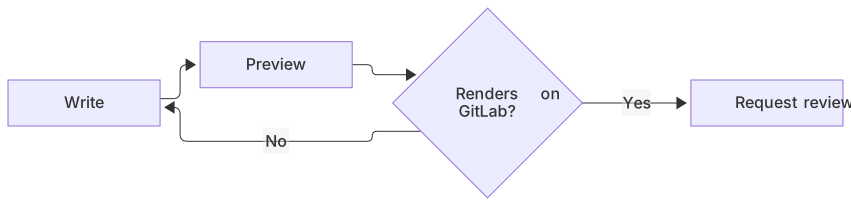
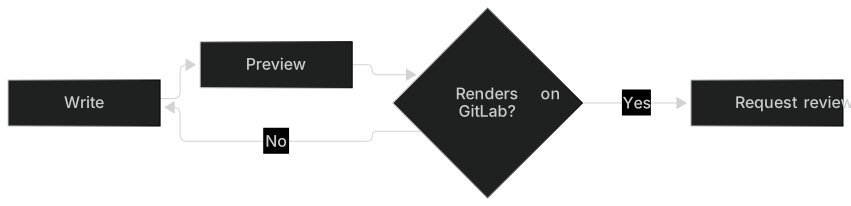
flowchart LR
  A[Write] --> B[Preview]
  B --> C{Renders on GitLab?}
  C -->|Yes| D[Request review]
C -->|No| AIf those four nodes fail, stop editing the graph. Check the info string, the closing fence, and whether you pasted the fence inside another code block. A fence wrapped in a second fence is a code sample about Mermaid, which is a different thing from a diagram.
For a first draft from a sentence, use the AI diagram generator. Paste the result into the fence and rename the nodes to the words your team uses in the issue tracker. A generated diagram that says "Step 2" is a sketch. The merge request should say "Run the migration."
A worked example
This is a review path for a small service change. It belongs in the merge request description, above the test notes, so a reviewer can see the order before they read the diff.
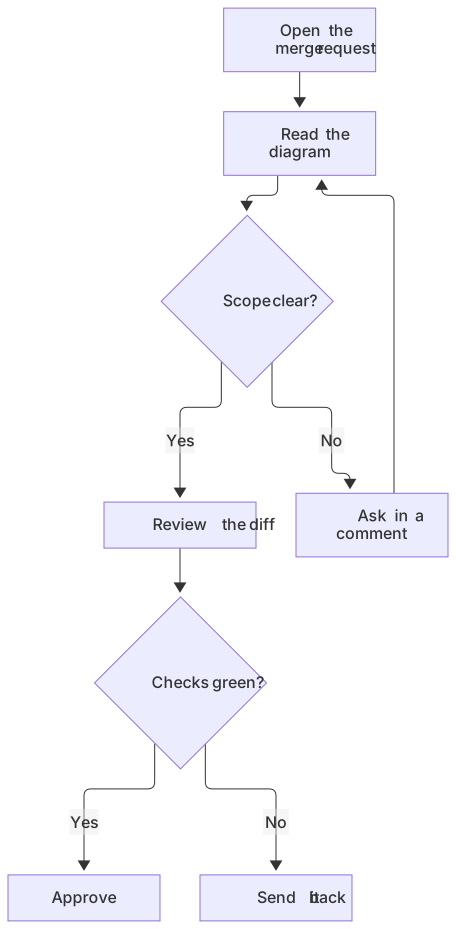
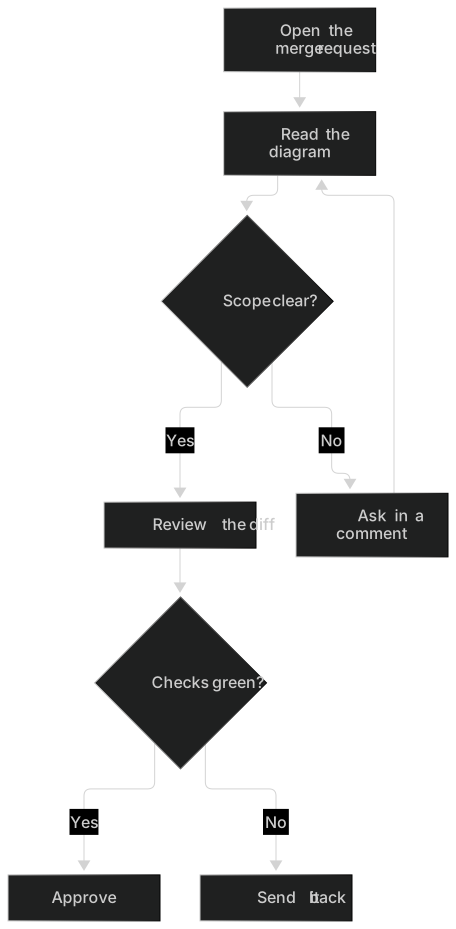
flowchart TD
  A[Open the merge request] --> B[Read the diagram]
  B --> C{Scope clear?}
  C -->|Yes| D[Review the diff]
  C -->|No| E[Ask in a comment]
  E --> B
  D --> F{Checks green?}
  F -->|Yes| G[Approve]
F -->|No| H[Send it back]The loop through the comment is the part text descriptions skip. Reviewers ask a question, the author updates the description, and the diagram is part of that update because it lives in the same Markdown. An attached PNG would have required a new upload for the same one-word change.
Keep the node text shorter than the sentence you would write in the description. "Scope clear?" is enough. The paragraph under the fence can say what "scope" includes for this repo, such as the migration and the feature flag. The flowchart syntax page covers subgraphs if you later split the chart into author steps and reviewer steps.
When the picture is about systems talking, switch forms. A deploy comment is a sequence, not a decision tree.
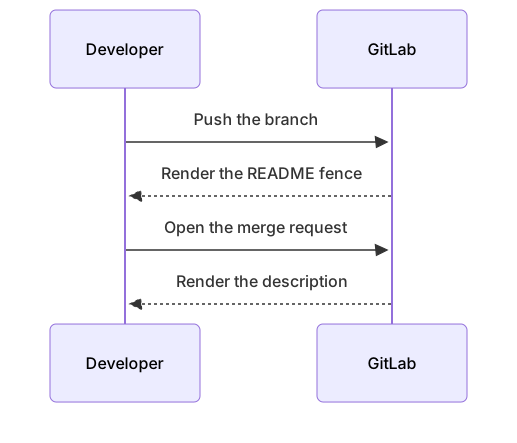
sequenceDiagram
  participant Dev as Developer
  participant GL as GitLab
  Dev->>GL: Push the branch
  GL-->>Dev: Render the README fence
  Dev->>GL: Open the merge request
GL-->>Dev: Render the descriptionThat second diagram is its own fence. Two keywords in one fence fail. Put a sentence between them: the flowchart is the review, the sequence is what GitLab does with the Markdown you pushed.
Wiki pages deserve the same care as the README. A handbook that only exists in the wiki will drift from the repo if both copies are edited by hand. Pick one source. If the repo is the source, link the wiki at the file. If the wiki is the source, say so at the top of the page. Two living copies of a deploy diagram is how an incident write-up cites the wrong order.
Limits and version skew
GitLab renders a practical set of diagrams, on the version bundled with that GitLab instance. GitLab.com and a self-managed instance can be on different releases, which means they can be on different Mermaid builds. A fence you proved on a public project can still fail on a company instance that has not upgraded.
Treat these as the limits to plan around.
- New diagram types are the first to fall over. Flowcharts and sequence diagrams travel between GitHub and GitLab with the least pain.
- Frontmatter and theme blocks are useful, and they are also optional syntax a slightly older build can reject. If the page errors, delete the config block and try the bare diagram. The themes and styling guide shows what you are deleting, so you can add it back on a host that accepts it.
- Click callbacks stay disabled. Tooltips and HTML labels are the wrong tool for an issue thread. Write the sentence next to the picture.
- Very large diagrams are hard to review on a merge request screen. Split them at a real boundary, such as "request path" and "failure path."
- The wiki, the issue, and the repository file do not share a special diagram store. Each one renders the fence it contains. Updating one does not update the others.
| Where you pasted it | What GitLab does | What to check |
|---|---|---|
README.md and other repo Markdown | Renders on the blob and on the project page | The default branch, if you only pushed a side branch |
| Issue or merge request | Renders in the description and in comments | The preview, then the saved page |
| Wiki | Renders on the wiki page | A second copy living in the repo |
A fence that uses click | Draws the nodes, ignores the callback | A real link under the diagram |
If a teammate says "it works on GitHub," ask them to open the GitLab page. Agreement between hosts is common for plain flowcharts and unreliable for anything that shipped in Mermaid recently.
Dark mode
Readers on GitLab may use a dark theme. A diagram that only uses default colors has the best chance of staying readable when the page background flips. A diagram full of classDef fills copied from a white-background tutorial often will not.
Avoid hard-coded light fills. A pale box with gray text can disappear into a light theme or glare on a dark one. If a status really needs color, check the merge request in both themes before you assign reviewers. The editor's light and dark toggle is the fast way to see a fill fail. If the fill only works in one theme, delete it and put the status in the label: "Approved" and "Blocked" do not need paint.
Self-managed themes can change the page chrome around the diagram even when Mermaid's own colors stay put. Look at the rendered SVG on the instance your team uses. A screenshot from GitLab.com is a hint. It is not a test of your instance.
Troubleshooting
Go from the fence to the syntax to the version. Most failures are in the first two.
The page shows a code block. The info string is missing or it is not mermaid. Headings, bold markers, and the word "diagram" do not mark a fence. Three backticks, then mermaid, then the keyword.
The page shows a parse error. Copy the inside of the fence into the editor. The syntax errors guide has the pairs that fix the usual messages. In GitLab Markdown the frequent ones are:
- A node named
end. That word closes a subgraph. Call the nodeEndordone. - Parentheses or colons in a label without quotes, such as
A["API (v2)"]. - A
subgraphwith noend. - Smart quotes pasted from a ticket template.
- Two diagram keywords in one fence.
- A
clickline the author thought was required. Delete it. Callbacks are disabled anyway, and a bad click line can also be a syntax error. - Config frontmatter the instance's Mermaid build does not accept.
The diagram renders in the editor and fails on GitLab. Remove styling first, then remove any diagram type this instance has not rendered before. A four-node flowchart is the compatibility test. When the test passes and the other diagram does not, export a PNG and commit it, and leave the source in the file as a comment or a collapsed detail only if you are sure this instance renders that HTML. The simpler habit is a second file named diagram.mmd that holds the source, plus a PNG linked from the Markdown.
The picture is stale. You are looking at a cached page, or you edited the source on a branch and you are viewing the default branch. Change one label to a nonsense word, reload, and confirm the nonsense word appears. Then restore the real label.
The diagram is so wide the merge request pane scrolls sideways. Switch flowchart LR to flowchart TD, or split the chart. Reviewers will not pan. They will skip.
When to export an image instead
Export a PNG or SVG when the diagram has to appear in a release asset, a PDF, or a tool that stores files rather than Markdown. Export when this GitLab instance cannot render the diagram type and the review cannot wait for an upgrade. Export when you want a snapshot in the issue that will not change if someone later edits the README.
Commit the source next to the image when the repo is allowed to hold both. The editor downloads a PNG on every plan: 1× with a watermark on Free, up to 4× on Starter, up to 8× on Pro. JPG, SVG, and PDF downloads are on Pro. The Mermaid to PNG converter is the short path for a bitmap. Put the date and the source path in the paragraph under the image. A PNG with no date looks like the current design even after the fence has moved on.
A syntax error is a reason to fix the fence. Exporting the broken picture just makes the error harder to diff.
The same fence on other tools
The fence is portable. Mermaid in VS Code is the local preview while you edit the file. Mermaid in Obsidian is the vault copy a team sometimes keeps beside the wiki. Mermaid in Notion is the code-block form, without the fence, for readers who live in Notion. A docs site uses Mermaid in Docusaurus. A page you render yourself uses embed Mermaid in HTML.
Check the GitLab page even after those tools look fine. The instance version is the constraint that belongs to this host.
Questions
Does GitLab render Mermaid?
Yes. GitLab renders mermaid fences in repository Markdown, issues, merge requests, and the wiki. Use a lowercase mermaid info string, put one diagram in the fence, and preview the page you are publishing.
Descriptions and comments both count. A diagram buried in a reply is still a diagram. It is also easy to miss, so the description is the better home for the picture you want every reviewer to see.
Is GitLab's Mermaid the same as GitHub's?
The fence syntax is the same. The bundled Mermaid version can differ, so a diagram that works on one host can fail on the other. Preview in the editor, then test on the host you ship to. Self-managed GitLab can differ from GitLab.com for the same reason a project differs from another project: the upgrade has not happened yet.
Plain flowcharts and sequence diagrams are the diagrams to prefer when the file has to render in both places.
Can I click nodes in a GitLab diagram?
Click callbacks are disabled for security. Use a label that names the thing, and put a real link in the surrounding Markdown. A click line will not navigate the reviewer, and it can also trip a parser that does not like the syntax.
If you need a map of links, a short list under the diagram is clearer than a chart that pretends to be a menu.
Why does the README differ from the merge request?
They are different Markdown documents. The README on the default branch updates when that branch updates. The merge request description updates when someone edits the description. Copy the fence into both if both audiences need it, or point one at the other and keep a single source. Two copies will diverge the first time a label changes in only one of them.
What if the instance never renders the diagram?
Use an image. Export from the editor, commit the PNG or SVG, and link it from the Markdown with ordinary image syntax. Keep the Mermaid source in the repo so the next person can regenerate the file after an upgrade. File the upgrade with whoever runs the instance if the missing diagram type matters to more than one repo. Until that upgrade, the image is the picture reviewers can actually see.
Frequently asked questions
Does GitLab render Mermaid?
Yes. GitLab renders mermaid fences in repository Markdown, issues, merge requests, epics and the wiki.
Is GitLab's Mermaid the same as GitHub's?
The fence syntax is the same. The bundled Mermaid version can differ, so a diagram that works on one host can fail on the other. Preview in MermaidViewer, then test on the host you ship to.
Can I click nodes in a GitLab diagram?
Click callbacks are disabled for security, same as GitHub. Use labels and a link in the surrounding Markdown instead.