You can put mermaid in notion without leaving the page. A code block, with the language set to Mermaid, is the whole feature. Switch that block to Preview or Split and Notion draws the diagram next to the text your team already reads. There is no plugin to install and no image to re-upload when a label changes. The diagram is the code, and the page is the place people look.
Notion is where a lot of teams keep the living description of a product: the onboarding checklist, the support runbook, the decision log. Mermaid fits because the source stays in the block. Anyone who can edit the page can edit the picture.
What Notion actually does
Notion stores the page as blocks. The block that matters here is the code block. You create it with /code, pick Mermaid from the language menu, and type or paste a diagram. The language menu is what tells Notion to render. Leave any Markdown fence out of the block. The body should start with a diagram keyword such as flowchart or sequenceDiagram.
Three view modes sit on that block.
- Code shows the source and nothing else. This is the mode you edit in.
- Preview hides the source and shows the drawing. This is what readers should see.
- Split shows both, which is the comfortable mode while you are still changing labels.
A common mistake is to paste a finished diagram, admire it in Split, and leave the block on Code. The next person opens the page and sees a wall of arrows and brackets. Switch to Preview before you move on. Split is for the author. Preview is for the page.
Notion's Mermaid build can lag behind the current release. A diagram that renders in the MermaidViewer editor can still fail on the page if it uses a diagram type or an option Notion has not picked up yet. Flowcharts, sequence diagrams, and the other long-standing types are the safe default. When you need a brand new type, export a picture and drop that on the page instead. The Mermaid to PNG tool does that in the browser.
The same lag shows up with styling. Frontmatter and theme variables are handy in the editor, and the themes and styling guide walks through them. If a styled diagram comes out blank, delete the config, confirm the plain diagram renders, and add style back one line at a time.
Add a diagram, step by step
Start from a page you can edit. A private draft is better than the team home page. You want room to break the syntax without announcing it.
- Type
/codeand choose Code. A code block appears with a language menu. - Set the language to Mermaid. If you leave it on Plain text, Notion will show the source forever.
- Paste the diagram source. The first line is the diagram keyword. Do not wrap it in backticks.
- Switch the block to Split so you can see the source and the picture together.
- Read the picture. If a node is missing, fix the line, click away, and let Notion draw it again.
- Switch the block to Preview when the picture is right, so readers are not staring at source.
Draft the hard diagrams outside Notion first. The editor updates on every keystroke and names the line that failed. Notion re-renders when you leave the block, which is a slower loop once the diagram is more than a handful of nodes. Write it, preview it, then paste the finished source into the code block.
If you would rather describe the process in a sentence, use the AI diagram generator. You still paste the result into Notion and you still check the labels. Name the steps the way your team says them.
A short starter you can paste before you have a real process:
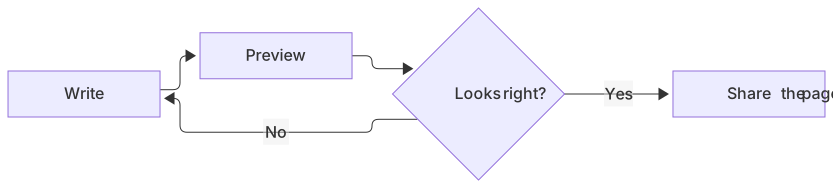
flowchart LR
  A[Write] --> B[Preview]
  B --> C{Looks right?}
  C -->|Yes| D[Share the page]
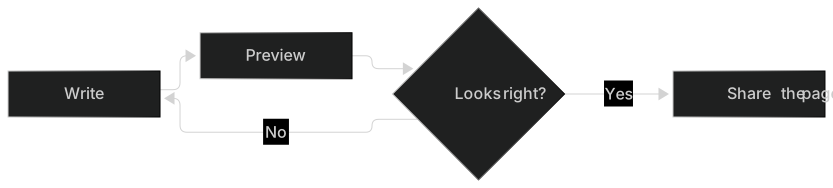
C -->|No| AThat is a complete diagram. Four nodes, one decision, two labeled edges. If this one fails in Notion, the problem is the block, not your syntax. Check the language menu and the view mode before you touch the text.
A worked example
Suppose the page is a support runbook for password resets. The team keeps arguing about who emails the user. Put the path on the page so the argument has a picture.
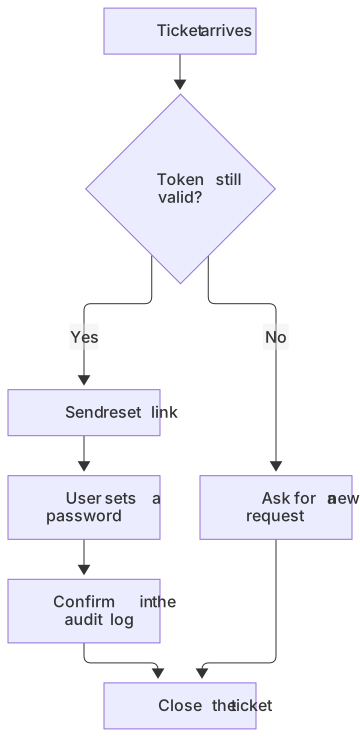
flowchart TD
  A[Ticket arrives] --> B{Token still valid?}
  B -->|Yes| C[Send reset link]
  B -->|No| D[Ask for a new request]
  C --> E[User sets a password]
  E --> F[Confirm in the audit log]
  D --> G[Close the ticket]
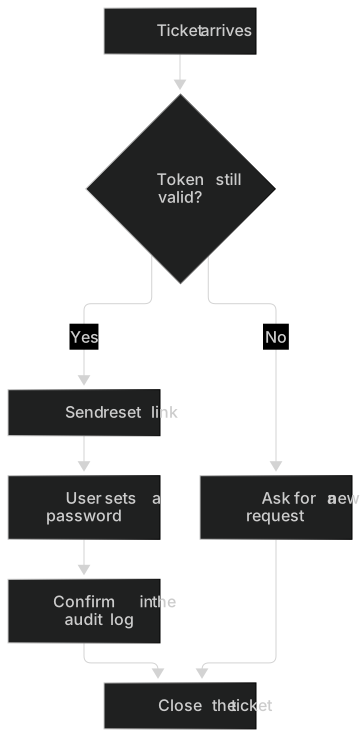
F --> GRead it the way a new hire would. The ticket arrives, someone checks the token, and both branches end at close. The join at G is the part people miss when the process lives only in a paragraph.
Keep labels short. Notion pages are often read in a narrow column, and a long sentence inside a node becomes a tall box. Put the extra rule in a sentence under the block. The flowchart syntax page covers decisions. When the question is who talks to whom, use a sequence instead.
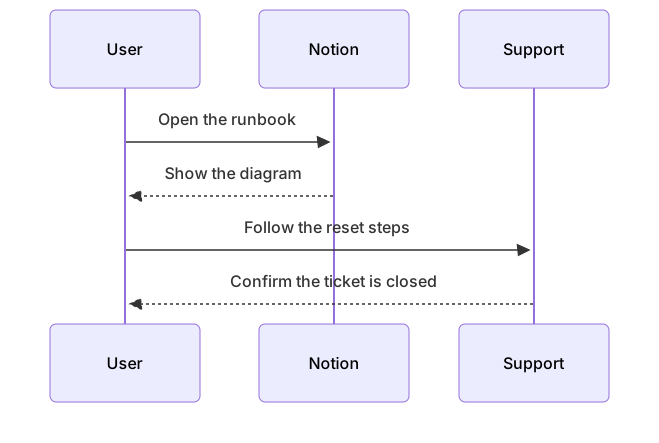
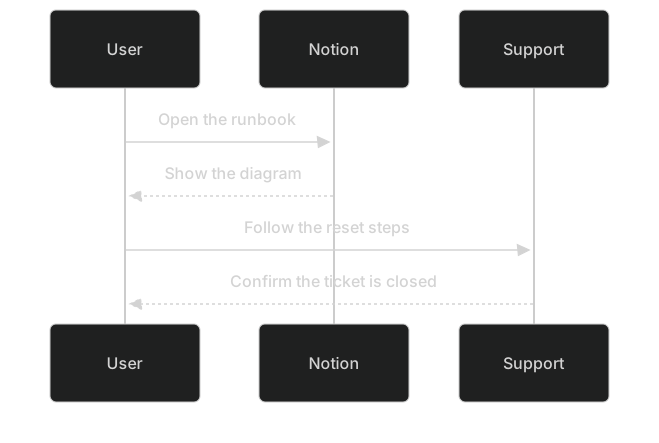
sequenceDiagram
  participant U as User
  participant N as Notion
  participant S as Support
  U->>N: Open the runbook
  N-->>U: Show the diagram
  U->>S: Follow the reset steps
S-->>U: Confirm the ticket is closedTwo diagrams on one page are fine. Each one lives in its own code block. A second keyword in the same block is a syntax error. Under the block, write the rule the picture cannot carry, such as "Do not reset an account from a forwarded screenshot."
Limits and version skew
Notion renders a useful subset of Mermaid, on Notion's schedule. The language menu does not show a version number. You find the limit by testing.
Treat these as the practical limits.
- New diagram types can fail until Notion ships a newer build. If the editor renders it and Notion stays blank, assume a version gap before you blame the page.
- Click callbacks do not belong on a wiki page. Even where Mermaid supports
click, a document host is the wrong place for script. Link the surrounding text instead. - Very wide charts become a horizontal scroll inside the block. Split a flowchart that needs a scrollbar into two charts with one shared node name in the prose between them.
- Colors you hard-code can look fine on your laptop and muddy on a teammate's theme. More on that below.
- The block is not a whiteboard. People cannot drag a node. They edit text. If a stakeholder wants to nudge boxes, export a picture and accept that the source is no longer what they are editing.
GitHub uses the same diagram syntax and a different release cadence. A README that looks right can still fail after you paste it into Notion. The GitHub Markdown guide is the checklist for that host. Make the syntax true in the editor, then confirm the picture on the host you ship to.
| Symptom on the page | What it usually means | What to do |
|---|---|---|
| Raw text, no picture | Language is not Mermaid, or the view is Code | Set the language, then choose Preview |
| Blank block | Syntax error, or a type Notion's build does not know | Paste into the editor and read the parse error |
| Picture, wrong layout | A long label or a missing link | Shorten the label, then check each arrow |
| Works in the editor, fails here | Version skew | Simplify, or export a PNG |
Dark mode
Notion follows the reader's theme. A diagram with no custom colors will switch with the page. That is the outcome you want. The moment you add classDef or a style line, you freeze colors that were chosen on a light screen.
The usual failure is a light fill, or light text on a dark node. On a dark page that light fill becomes a glaring card, and light text on a default node disappears. If color has to mean something, use it for status and check the page in both themes before you share it.
A safer habit is to leave fills alone and put the meaning in the label. "Valid token" and "Expired token" are clear without a color. When you do want brand colors, build them in the editor, toggle light and dark, and only then paste the source into Notion.
Troubleshooting
Work from the outside in. Most blank diagrams are not subtle.
The language menu is the first check. Mermaid is one entry in a long list. JavaScript, Plain text, and Mermaid look nothing alike until you are tired, and then they do. If the block shows coloring that looks like a programming language, you are not on Mermaid.
The second check is the view. Code, Preview, Split. Preview and Split draw. Code does not. Authors leave blocks on Code because that is where the cursor was. Make Preview the last click.
The third check is a double fence. People copy a Markdown sample that starts with three backticks and the word mermaid. Inside a Notion code block that fence is not a wrapper. It is broken diagram text. Delete the backticks and the info string. The first line inside the block should be flowchart or sequenceDiagram or another diagram keyword.
Then look at the syntax itself. These are the mistakes that show up every week.
- A node named
end. That word closes subgraphs. Name the nodeEndorfinish, or quote the label. - Parentheses in a label, as in
A[Call api(v2)]. Quote it:A["Call api(v2)"]. - Two diagram keywords in one block. Split them.
- A subgraph that never closes. Every
subgraphneeds anendon its own line. - Smart quotes from a doc editor. Mermaid wants straight
"characters. Notion will happily store the curly ones, and the parser will reject them.
When the message is a parse error, copy the source into the editor. The syntax errors guide lists the patterns with a before and after. The editor highlights the failing line. Fix it there, copy the repaired source, and replace the body of the Notion block. Do not try to patch a 40-line diagram inside a narrow code block if you can help it.
If the source is valid in the editor and Notion still shows a blank block, you are in version skew. Remove styling first. Then try a flowchart with a decision, which is the compatibility test. If that flowchart renders and the other diagram does not, keep the flowchart on the page and attach a PNG of the newer one. Notes to yourself belong under the block. A line with no %% comment marker is a syntax error.
When to export an image instead
Export when the page and the picture have different jobs.
Use a PNG or SVG when the diagram must appear in a slide, a PDF report, or a tool that has no Mermaid support. Use one when Notion's build cannot render the diagram type you need. Use one when you want a snapshot that will not change if someone edits the code block next month. A code block is a living source. An image is a record of what you agreed on Tuesday.
An image stays put when the process changes, so write the date next to it and keep the source in a toggle or a linked page. The editor downloads a PNG on every plan: 1× with a watermark on Free, up to 4× on Starter, up to 8× on Pro. JPG, SVG, and PDF downloads are on Pro. For a single PNG, the Mermaid to PNG converter is the shorter route. Fix a syntax error before you export. A bad paste is cheaper to repair than a folder of stale images.
Where else this source can go
The text in the Notion block is ordinary Mermaid. The same source can live in a repo, a vault, or a docs site once you wrap it in a fence. How that fence works is covered in Mermaid in Markdown. A vault uses Mermaid in Obsidian. A merge request uses Mermaid in GitLab. Keep the labels in the source so the diagram can move.
Questions
Does Notion support Mermaid?
Yes. Create a code block, set the language to Mermaid, and switch the block to Preview or Split. Notion renders the diagram in the page. Scroll the language list if Mermaid is below the fold. The feature is the code block, the language menu, and the view switch.
Why is my Notion Mermaid block blank?
The usual causes are a syntax error, the block still set to Code instead of Preview, or a diagram type newer than the Mermaid build Notion ships. Paste the code into the editor to see the parser error. If the editor draws it and Notion does not, simplify the diagram or export an image. Three backticks inside the block are also a syntax error. The language menu already marked the block as Mermaid.
Can I edit the diagram after it renders?
Yes. Open the code block and edit the text. Notion re-renders when you leave the block. For a faster loop, draft in the editor and paste the finished code back. Use Split while you edit and Preview when you stop. If several people edit the page, the last save wins. Agree on who owns the source.
Should the diagram live in Notion or in the repo?
Put it in Notion when the readers live in Notion and the process changes in conversation. Put it in the repo when the diagram describes code that changes in pull requests. If the repo is the source of truth, say so under the block or export an image from that version. The VS Code guide covers the local preview loop. The HTML embed guide covers a site you control outside Notion.
Can I use the same diagram in a docs site later?
Yes. Copy the source out of the code block, wrap it in a mermaid fence, and follow the setup in Mermaid in Docusaurus if that is your docs tool. Check it in the editor first. A fence is the portable form. The Notion block is one place that form can sit.
Frequently asked questions
Does Notion support Mermaid?
Yes. Create a code block, set the language to Mermaid, and switch the block to Preview or Split. Notion renders the diagram in the page.
Why is my Notion Mermaid block blank?
The usual causes are a syntax error, the block still set to Code instead of Preview, or a diagram type newer than the Mermaid build Notion ships. Paste the code into MermaidViewer to see the parser error.
Can I edit the diagram after it renders?
Yes. Open the code block and edit the text. Notion re-renders when you leave the block. For a faster loop, draft in the MermaidViewer editor and paste the finished code back.