Mermaid in vs code means a fenced block in a Markdown file, drawn by the editor's preview. Recent VS Code releases render that fence in the built-in Markdown preview. Older installs show the fence as code until you add the "Markdown Preview Mermaid Support" extension. Either way, the preview is a check you run on purpose. It is not a picture that updates on every keystroke. The MermaidViewer editor is the keystroke-live loop. VS Code is where the file lives.
That split is useful once you expect it. You edit the file in the editor you already use for the repo. You glance at the preview to see what a Markdown host will roughly do. You jump to a dedicated Mermaid editor when the syntax gets fussy. Then you come back and save.
What VS Code actually does
Open a .md file. A fence that starts with three backticks and mermaid is a diagram, on a VS Code that knows how to draw one. The command is Markdown: Open Preview, or Markdown: Open Preview to the Side if you want the source to stay visible. The preview pane runs the built-in Markdown renderer. On a recent version, that renderer includes Mermaid.
On an older version, the same command shows a styled code block. The words are still there. The boxes are not. Install "Markdown Preview Mermaid Support" from the extension view, reload if it asks you to, and open the preview again. The extension's job is the preview. It does not add a special file type, and it does not replace the fence with a drawing inside the text buffer. You still edit text.
The preview refreshes when the file saves, or when the preview pane reloads, depending on your settings. Typing a new node and expecting the picture to twitch on the same frame will feel broken. It is keeping to its own schedule. Save, then look. If you want the diagram to follow the cursor, keep the editor open beside VS Code and paste back when the picture is right.
Syntax errors show up in the preview as Mermaid's parse message. The text buffer may look perfectly happy, because the fence is ordinary Markdown and the language service is not always a Mermaid parser. Trust the preview's error, then paste the source into the editor if you want the failing line highlighted. The editor can also repair it with AI Fix. The syntax errors guide is the manual version of that repair.
Preview a diagram, step by step
Start with one file so you learn the loop before you convert a docs tree.
- Create
docs/preview-scratch.mdin the folder you already have open. - Add a mermaid fence. The info string is lowercase
mermaid. The first line inside isflowchart LR. - Run Markdown: Open Preview to the Side from the command palette.
- If you see the source as a code block and your VS Code is old, install "Markdown Preview Mermaid Support" and reopen the preview.
- Save the file after each change. Then read the preview.
- When the picture matches the process, commit the Markdown. The preview is not the artifact. The file is.
Here is a fence that proves the preview, the extension, and the file are all talking.


flowchart LR
  A[Write] --> B[Save]
  B --> C[Preview]
  C --> D{Picture updated?}
  D -->|Yes| E[Commit]
D -->|No| BIf this one fails, the graph is not the problem. Check the VS Code version, the extension, and the info string. A preview pointed at a different file will also sit there looking innocent while you edit. The tab title should match preview-scratch.md.
Longer diagrams are easier to draft in the editor, especially when you are still moving nodes around. Describe the flow in a sentence and use the AI diagram generator when you want a legal first version of the syntax. Bring the source back into the fence, save, and let the preview confirm the file you will commit.
The flowchart syntax page is the reference for node shapes and labeled edges. You do not need it for the starter. You will want it the moment a decision needs two labels and a subgraph.
A worked example
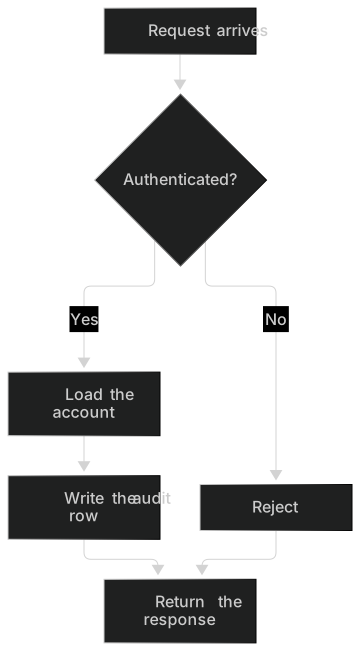
A local architecture note is the sort of file that lives in VS Code all day. This one is the path a request takes through a small service. It sits in the repo so the preview and the pull request can show the same fence.
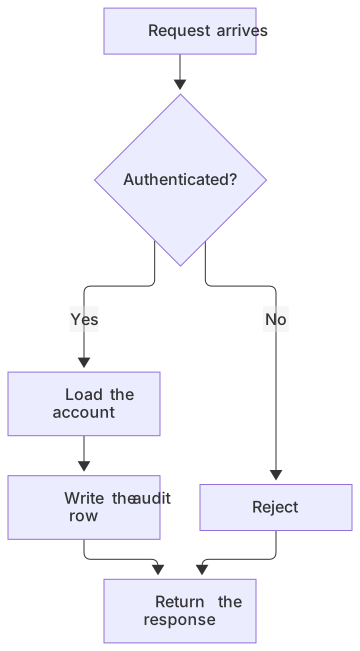
flowchart TD
  A[Request arrives] --> B{Authenticated?}
  B -->|Yes| C[Load the account]
  B -->|No| D[Reject]
  C --> E[Write the audit row]
  E --> F[Return the response]
D --> FSave, preview, and read it as a reviewer would. Both the rejection and the success path return a response. The audit row only happens after auth. That is the kind of join a paragraph can smear. The diagram keeps it blunt.
Labels are short because the preview pane is often half the window. A node with a full sentence becomes a column of wrapped text and the arrow into it looks lost. Put the sentence in the Markdown under the fence. "Reject means 401, with no audit row" is a fine sentence. It is a poor node.
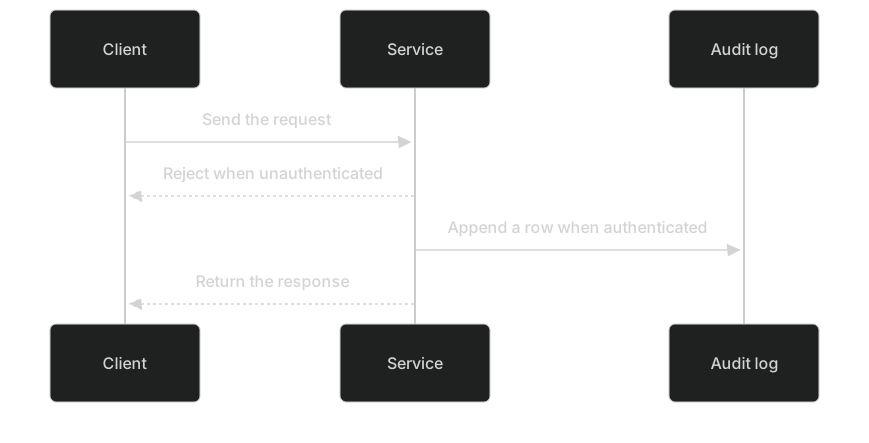
When the note is about who calls whom, add a second fence. This sequence matches the flowchart. It answers a different question.
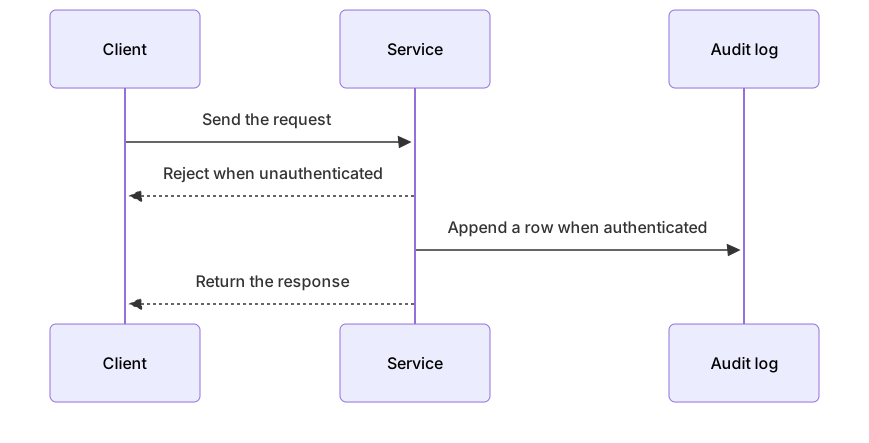
sequenceDiagram
  participant C as Client
  participant S as Service
  participant A as Audit log
  C->>S: Send the request
  S-->>C: Reject when unauthenticated
  S->>A: Append a row when authenticated
S-->>C: Return the responseOne keyword per fence. A blank line between the fences keeps some Markdown parsers from sticking the second opening line to the previous paragraph. The Mermaid in Markdown guide is the longer version of that fence hygiene, for files that will also render outside VS Code.
If the preview and the GitHub Markdown guide ever disagree, believe the host you ship to, and use VS Code as the place you edit. The preview is a local convenience. GitHub or GitLab is the page your readers open.
Limits and version skew
VS Code's built-in support arrived in a recent release and stays tied to the Mermaid build that release vendors. Updating VS Code can change how a fence renders. Staying on an old release means you depend on the extension, and the extension vendors its own build too. Three previews of one file can disagree: the extension, the built-in preview, and the website.
Plan for that.
- Prefer flowcharts and sequence diagrams when the file must render in VS Code and on the git host. New diagram types are how you discover a version gap.
- Frontmatter for themes may render in one preview and error in another. If the preview fails, remove the
---block and confirm the bare diagram. Add style back only after both previews agree. The themes and styling guide is the catalog of what you might be adding. - The preview does not update on each keystroke. Save, or reopen the preview, before you decide a change did nothing.
- Click callbacks are a local toy. Git hosts disable them. A diagram that "works" because you can click a node in a permissive preview can still be the wrong diagram to commit.
- Huge graphs make the preview pane scroll in two directions. Split the file into two fences with a heading between them.
| What the preview shows | What it usually means | Next step |
|---|---|---|
| A code block | Old VS Code, or the info string is wrong | Install the extension, or set the info string to mermaid |
| A parse error | The source is invalid | Paste it into the editor and read the line |
| A picture that ignores your edit | The file is unsaved, or the preview is stale | Save, then reload the preview |
| A picture the git host rejects | Version skew | Simplify, or export a PNG |
| Nothing, wrong file | The preview is attached to another tab | Open Preview to the Side from this editor |
The extension and the built-in renderer can both be active on a new VS Code. If a diagram renders twice as oddly as it should, disable the extension and let the built-in preview work alone. Turn the extension back on only if the built-in preview shows code.
Dark mode
VS Code's workbench is often dark, and the Markdown preview sits inside that workbench. Default Mermaid colors usually stay readable. Hard-coded fills often do not.
Skip light fills you copied from a blog. fill:#ffffff on a node is a white card. In a dark preview the card shouts, and any text color aimed at a light theme can land on the wrong background. If the label already says "Reject," the white card is decoration. Delete the style line and preview again.
When you do need status color, toggle the workbench theme, save, and read every label in the preview. Then open the same file on the host that will publish it, because that host has its own dark theme. A fill that survives VS Code can still fail on GitHub. The editor's theme toggle is the quickest place to throw away a color that only works once.
Troubleshooting
Work in this order. It matches the way the preview actually fails.
Confirm you opened the Markdown preview, not a third-party HTML preview of some other tool, and not the raw text. The command name in the palette is Markdown: Open Preview. If the pane shows a toolbar full of unfamiliar buttons, you may be in an extension that previews a different way. Use the built-in command once so you know what core VS Code does.
Confirm the fence. Lowercase mermaid. Closing backticks at the same indent as the opening backticks. One diagram keyword inside. A fence indented under a list needs the closing line indented too. The rest of the file turning into code is a missing close, not a Mermaid bug.
Then the source.
endas a node name closes subgraphs. UseEnd.- Unquoted parentheses in labels. Use
A["Call api(v2)"]. - A subgraph without
end. - Curly quotes from a copied issue.
- Two keywords in one fence.
- A config header the preview's Mermaid build rejects. Delete it and save again.
Paste into the editor when the preview's message is a line number and a shrug. Fix it there. Copy the source back. Save. Look at the preview. That loop is slower than typing in one window, and it is faster than guessing inside a stale pane.
If the editor renders the diagram and both the preview and the git host refuse it, you are ahead of their Mermaid versions. Export a PNG for the readers and keep the source in the file for the day the host catches up. The Mermaid to PNG tool is enough for that bitmap.
A preview that never updates is usually an unsaved buffer or a pane bound to a different group. Save all, close the preview, and run Open Preview to the Side from the tab that holds the fence.
When to export an image instead
Export when the diagram leaves the repo. Slides, chat, a ticket system that shows images, and a Word doc all want a file. Export when an older VS Code and an older git host cannot draw the diagram type you need this week. Export when a release needs a frozen picture and the Markdown will keep evolving on main.
Keep the fence in the file after you export. The image is a view. The fence is the source you will diff. The editor downloads a PNG on every plan: 1× with a watermark on Free, up to 4× on Starter, up to 8× on Pro. JPG, SVG, and PDF downloads are on Pro. Date the image in the paragraph under it so nobody treats last quarter's PNG as the current design.
Do not export to escape a parse error. Fix the line. An image of a broken diagram is a very permanent kind of confusion.
Other places the file will render
VS Code is the editing seat. The file still has to survive the host. Mermaid in GitLab covers merge requests and the wiki. Mermaid in Notion is the path if someone pastes the inner source into a code block. Mermaid in Obsidian is the vault, where indentation and themes matter in a different way. A published docs site is Mermaid in Docusaurus. A custom page is embed Mermaid in HTML.
Use the preview to catch fence mistakes before those hosts do. Use the host to decide the diagram is actually done.
Questions
Can VS Code preview Mermaid?
Recent VS Code releases render mermaid fences in the built-in Markdown preview. Older installs need the "Markdown Preview Mermaid Support" extension. Open the preview from the command palette, with the .md file active. A code block in that preview means the renderer does not know the fence yet, or the info string is not mermaid.
Update VS Code if you can. The built-in path is one less extension to keep aligned with the git host.
Does the preview update as I type?
The preview refreshes when the file saves or when the preview pane reloads, depending on your settings. It does not follow every keystroke. For that loop, keep the MermaidViewer editor open and paste the finished source back into the fence. Save again so the VS Code preview agrees with the file on disk.
If a saved change still fails to appear, close the preview and open it from the current tab.
Where do syntax errors show up?
The preview shows Mermaid's parse error. The text editor may show nothing, because the fence is valid Markdown even when the diagram inside it is not. Copy the source into the MermaidViewer editor, which highlights the failing line and can repair it with AI Fix. The syntax guide on this site lists the same mistakes if you would rather fix them by hand.
Should I keep the extension installed on a new VS Code?
Try the built-in preview first. If it draws the starter flowchart, you can leave the extension disabled so only one renderer is involved. Keep the extension if you are stuck on an older VS Code, or if a teammate's setup still needs it. Say which one the repo expects in the README so two people do not debug two different previews.
Why does the preview disagree with GitHub?
They bundle Mermaid separately. A fence can be valid and still use a feature one of them has not picked up. Simplify to a flowchart or a sequence, drop theme frontmatter, and preview on GitHub before you merge. When the feature matters more than the live render, export an image and commit it beside the source.
Frequently asked questions
Can VS Code preview Mermaid?
Recent VS Code releases render mermaid fences in the built-in Markdown preview. Older installs need the Markdown Preview Mermaid Support extension.
Does the preview update as I type?
The preview refreshes when the file saves or when the preview pane reloads, depending on your settings. For a keystroke-by-keystroke loop, keep MermaidViewer open beside the editor.
Where do syntax errors show up?
The preview shows Mermaid's parse error. Copy that line into the MermaidViewer editor, which highlights the failing line and can repair it with AI Fix.