Mermaid in obsidian is a fenced code block in a normal note. Reading view and live preview both draw it. You do not install a community plugin to get that. The fence is the diagram, the note is the document, and the vault theme is the thing most likely to make a careful diagram look wrong on a second machine.
That is the whole feature, and it is enough for a research vault, a personal wiki, or a team folder of decisions. The picture stays next to the paragraph that explains it. When the process changes, you change the text in the fence. You do not hunt for an exported image buried in an attachments folder.
What Obsidian actually does
Obsidian reads Markdown. A fence that starts with three backticks and the word mermaid is a diagram. The lines inside are Mermaid source. The closing fence ends it. In reading view, you see the picture. In live preview, you see the picture in the flow of the note while the cursor is somewhere else, and you see the source when you put the cursor in the fence.
No plugin is required for that. If a plugin is also drawing diagrams, turn it off while you debug. Two renderers fighting over one fence is a miserable way to spend an evening. Core Obsidian is the thing this guide is about.
Indentation and themes matter more here than they do in a flat README. Obsidian notes are full of nested lists, callouts, and headings. A fence that is indented to sit inside a list item has to be indented consistently, opening line and closing line included. A fence that starts at the margin and closes at four spaces will not close. The rest of the note becomes code.
Themes matter because the vault can be light, dark, or a community theme that changes both. Mermaid's default colors follow that reasonably well until you paste a style or classDef line you copied from a light-mode screenshot. Hard-coded light fills are the usual way a diagram becomes unreadable. The section on dark mode below is the fix. The themes and styling guide is the longer version, for when you do want color on purpose.
Obsidian pins a Mermaid version. A diagram that renders in the MermaidViewer editor can fail in the vault if it uses a diagram type or a frontmatter option the pinned build does not know. Brand-new types are the risky ones. Flowcharts and sequence diagrams are the ones to trust when the note has to open on every machine in the vault.
Add a diagram, step by step
Create a scratch note first. A daily note is a fine lab. A published index note is not.
- Open a note and leave a blank line so the fence is not glued to a list or a heading.
- Type three backticks, then
mermaid, in lowercase, on that line. - Put the diagram on the following lines. The first of those lines is a keyword such as
flowchart LR. - Close with three backticks on their own line, at the same indent as the opening fence.
- Open reading view, or move the cursor out of the fence in live preview, and look at the picture.
- If the picture is wrong, come back to the fence and fix the source. Then check reading view again.
Live preview is convenient and it is also easy to misread. While the cursor sits inside the fence you are looking at source. Step out of the fence before you decide the diagram is broken. Reading view is the stricter check, because it is what a lot of people use when they are only reading.
Draft anything longer than a dozen nodes in the editor. It updates on each keystroke and points at the bad line. Obsidian will render a valid fence, and it will also sit there showing an error banner while you guess which bracket is unmatched. Write it, confirm it, then paste the source between the fences.
If you have the process in plain language and you want a first draft of the syntax, use the AI diagram generator. Read every label before it lands in the vault. A generator does not know your note titles.
A fence you can paste into the scratch note:
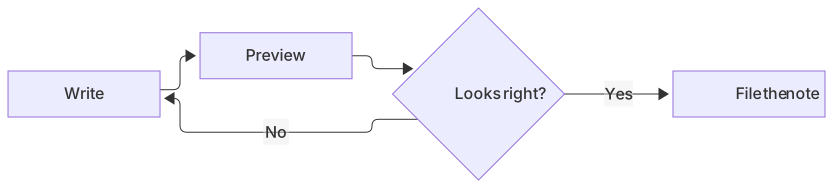
flowchart LR
  A[Write] --> B[Preview]
  B --> C{Looks right?}
  C -->|Yes| D[File the note]
C -->|No| AIf that starter fails, the fence is the problem. Check the info string, the closing backticks, and the indent. The four nodes are valid Mermaid.
A worked example
A research note on a publishing pipeline is a good real diagram. The note already has paragraphs of commentary. The picture should show the path, not repeat the commentary.
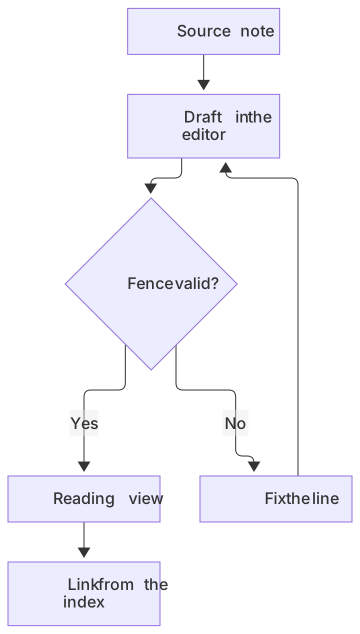
flowchart TD
  A[Source note] --> B[Draft in the editor]
  B --> C{Fence valid?}
  C -->|Yes| D[Reading view]
  C -->|No| E[Fix the line]
  E --> B
D --> F[Link from the index]The loop is the point. You draft, you check the fence, you either land in reading view or you go back to the line that failed. The index link is the last step, because a broken diagram in the index is how a vault starts to feel unreliable.
Keep node text short. A vault pane is narrower than a blog column, and a 12-word label wraps into a box that crowds its neighbors. Put the long explanation in the paragraph under the fence. The flowchart syntax page is there when you need subgraphs, different arrow heads, or a decision with more than two outs.
When the note is about a conversation between you and the app, a sequence is the clearer picture. Same vault, different question.
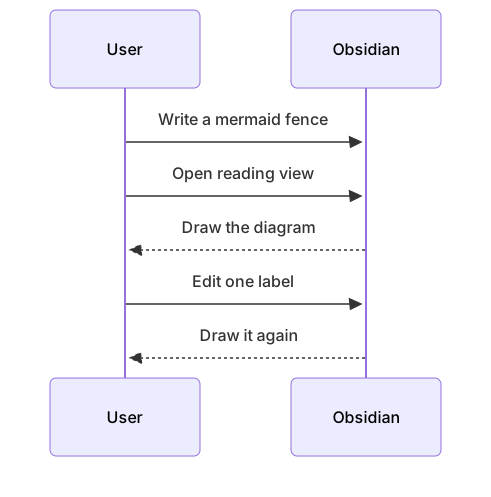
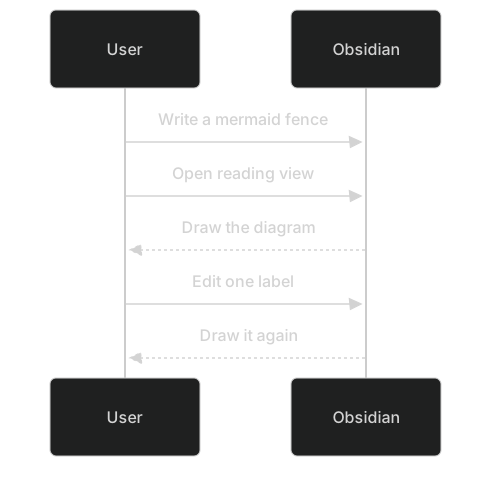
sequenceDiagram
  participant U as User
  participant O as Obsidian
  U->>O: Write a mermaid fence
  U->>O: Open reading view
  O-->>U: Draw the diagram
  U->>O: Edit one label
O-->>U: Draw it againOne fence, one diagram. A second keyword in the same fence is a parse error. If the note needs both pictures, use two fences with a sentence between them so a reader knows why both exist.
Callouts hide fences when the indent slips. Indent every line of a nested fence, including the closing backticks. If the next paragraph gets swallowed, move the fence back to the left margin.
Limits and version skew
The vault renders what its pinned Mermaid build understands. You will not see that version in the note. You see it when a diagram works in the editor and fails in reading view.
Practical limits:
- New diagram types and some frontmatter options fail until Obsidian updates. Simplify the syntax, or export a PNG and embed the image in the note.
- Click callbacks and HTML labels are a poor fit for a note you sync between machines. Keep the note as text. Put links in the paragraph under the fence.
- A mindmap is indentation-sensitive. Two spaces is one level. A tab that looks like two spaces is a different tree. If the map scrambles, convert the fence to spaces and count them.
- Wide flowcharts scroll inside the note. Split them. A reader who has to pan a note has already lost the thread.
- After a theme change, re-open reading view before you blame the source. Fonts and background colors around the diagram can shift.
GitHub renders the same kind of fence and may be on a different Mermaid build. A note you also publish as a README can succeed in one place and fail in the other. The GitHub Markdown guide covers that host. Mermaid in Markdown covers the fence you can carry from the vault to a repo.
| What you see in the note | Likely cause | What to try |
|---|---|---|
| Raw fence, no picture | Info string missing, or you are still inside the fence | Use mermaid, then click outside it |
| Error text instead of a picture | Unmatched bracket, bad keyword, or a quote character | Paste the source into the editor |
| Picture in the editor, blank here | Pinned version is older | Drop frontmatter, or export a PNG |
| Text disappears | Hard-coded light fill on a dark theme | Remove style and classDef |
| Rest of the note looks like code | Closing fence is missing or indented differently | Align the closing backticks |
Dark mode
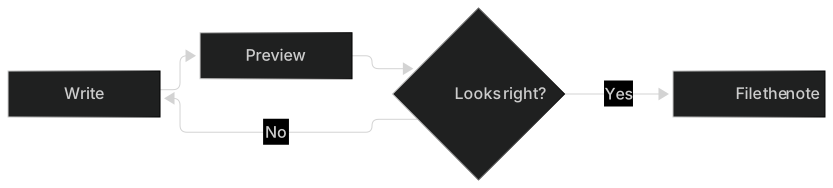
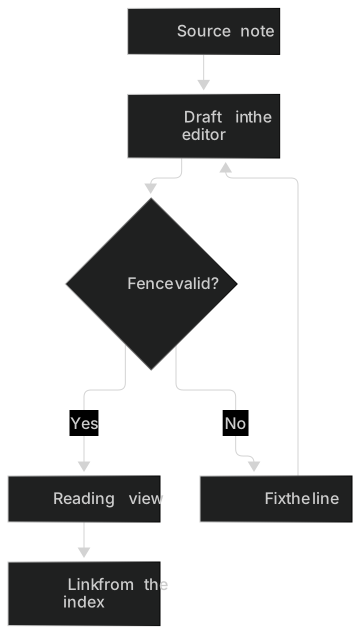
Obsidian will be in dark mode on somebody's machine even if you write at noon on a light theme. A diagram with no custom colors survives that switch. A diagram with fills copied from a blog post often does not.
Avoid hard-coded light fills. classDef ok fill:#dcfce7 looks like a soft green card on a white note. On a dark note the card is still pale, the surrounding graph is dark, and any text color you also hard-coded may vanish into one or the other. The meaning you wanted, "this node is done," is still available as the word Done.
If you need a status color, test it. Switch the vault to dark, open reading view, and read every label out loud. If you have to squint, delete the fill. Build experiments in the editor with the light and dark toggle, then paste the source that survived both. If the vault's pinned build ignores theme frontmatter, you have lost nothing by keeping the diagram plain.
Troubleshooting
Start with the fence, not the diagram. These are the mistakes that waste the most time.
The info string is mermaid, lowercase, on the opening line, with nothing after it except optional spaces. Mermaid, mmd, and mermaidjs are not that string. A fence with the wrong word is a code block. Reading view will show it as code, which people mistake for a Mermaid failure.
The closing fence has to exist. A long note can swallow a diagram and every paragraph after it when the backticks never come back. Select from the opening fence down and look for the pair.
Indentation has to match. Inside a list, Obsidian expects the fence to line up with the list's content indent. Mixed tabs and spaces are enough to break that even when the characters look aligned. Retype the opening and closing lines with spaces if a list-nested diagram will not render.
Then read the source.
- A node called
endcloses a subgraph instead of drawing a node. UseEndorfinish. - Parentheses, colons, and brackets inside labels need quotes:
A["Ship (v2)"]. - Two diagrams in one fence. Split them.
- A
subgraphwithout itsend. - Curly quotes pasted from a web page. Mermaid wants straight quotes.
- A frontmatter block the pinned version does not parse. Delete the
---config and try again.
Paste the failing source into the editor when the note only says there is a parse error. The syntax errors guide has the usual before-and-after pairs. Fix the line in the editor, copy the source back, and keep the fences you already wrote. Replacing the whole note to fix one arrow is how you lose the commentary.
If the editor draws the diagram and reading view does not, treat it as version skew. Remove styling. Remove any diagram type you have not already used in this vault. A small flowchart is the test. When the test passes and the ambitious diagram fails, export a PNG for that one picture and leave a sentence in the note that says the image is a snapshot.
If live preview looks stale, click into the fence and back out, or flip to reading view. If it is still stale, the source really does say what you are seeing.
When to export an image instead
Export when the reader is not in the vault. A slide, a PDF, a chat message, and a publisher that wants a file all need an image. Export when the diagram type is newer than the vault's Mermaid build and you need it this week. Export when the note is a record of a decision and you want the picture to stay frozen while the fence remains available underneath for the next revision.
Keep the fence in the note even after you embed an image. An image with no source is a diagram you will redraw from memory. The editor downloads a PNG on every plan: 1× with a watermark on Free, up to 4× on Starter, up to 8× on Pro. JPG, SVG, and PDF downloads are on Pro. The Mermaid to PNG tool is the short path when you only need a bitmap.
A syntax error is a reason to fix the fence. It is a weak reason to export. The image would preserve the mistake in a form that is harder to correct.
The same source, other apps
The fence you wrote is portable Markdown. Mermaid in Markdown explains which apps honor it and which apps will show the raw block. A team wiki on Notion wants the source without the fence, which is Mermaid in Notion. A repo preview on your machine is Mermaid in VS Code. A docs site is Mermaid in Docusaurus, and a hand-written page is embed Mermaid in HTML.
Mermaid in GitLab is the check when the note and the merge request should show the same picture.
Questions
Do I need a plugin for Mermaid in Obsidian?
No. Obsidian renders mermaid fences in reading view and live preview without a community plugin. If you already installed one, disable it while you check a broken note so you are only looking at core behavior.
The fence still has to be valid Markdown. A missing closing fence looks like a missing feature. It is a missing line.
Why does a diagram work in MermaidViewer but not in Obsidian?
Obsidian pins a Mermaid version. Brand-new diagram types and some frontmatter options can fail until Obsidian updates. Export a PNG for those, or simplify the syntax. Confirm the failure in reading view, with the cursor outside the fence, before you call it a version gap.
Compare the exact source too. A label fixed in the editor does nothing until you paste it back into the note.
Can I use a dark theme?
Yes. Obsidian passes its theme through. Avoid hard-coded light fills in classDef or style, or the text can disappear on a dark note. Leave color out unless you have checked reading view in both themes. Labels can carry status without a fill.
Why did the diagram indent itself into the next section?
The closing fence is probably indented differently from the opening fence, or it is missing. Put both fences at the same column. If the diagram was meant to live inside a list or a callout, indent every line of the fence together. When in doubt, move it to the left margin and give it a blank line above and below.
Can I keep the diagram in the vault and also publish it?
Yes. Copy the fence into the repo file, or copy the inner source into a host that wants a code block instead of a fence. Preview on each host. The GitHub Markdown guide is the extra check when the public copy lives on GitHub. If a host has no Mermaid support, export from the editor and commit the image beside the note's source so you can regenerate it.
Frequently asked questions
Do I need a plugin for Mermaid in Obsidian?
No. Obsidian renders mermaid fences in reading view and live preview without a community plugin.
Why does a diagram work in MermaidViewer but not in Obsidian?
Obsidian pins a Mermaid version. Brand-new diagram types and some frontmatter options can fail until Obsidian updates. Export a PNG for those, or simplify the syntax.
Can I use a dark theme?
Yes. Obsidian passes its theme through. Avoid hard-coded light fills in classDef or the text can disappear on a dark note.