AI architecture diagram generator
AI architecture diagram generator for services, groups and edges, written as Mermaid architecture syntax.
By MermaidViewer editorsPublished Updated
Example prompts for a architecture diagram
- “AWS serverless architecture with API Gateway, Lambda and DynamoDB”
- “Kubernetes deployment with ingress and database”
- “Static site with CDN and object storage”
What a Mermaid architecture diagram looks like
Example architecture diagram
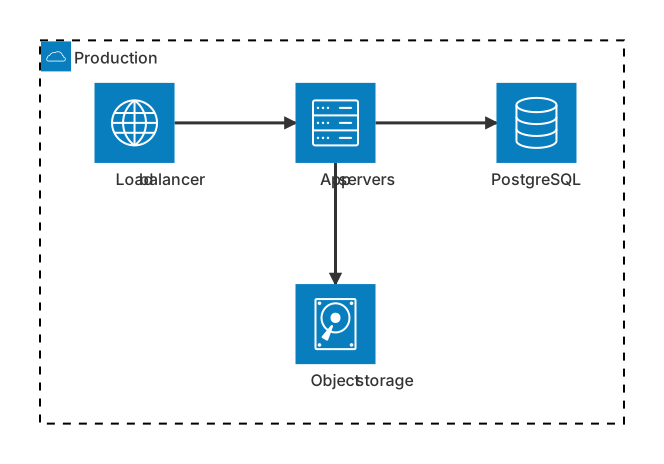
architecture-beta
    group cloud(cloud)[Production]
    service lb(internet)[Load balancer] in cloud
    service app(server)[App servers] in cloud
    service db(database)[PostgreSQL] in cloud
    service files(disk)[Object storage] in cloud
    lb:R --> L:app
    app:R --> L:db
app:B --> T:filesWant to write it by hand? See the full Mermaid architecture diagram syntax and examples, or browse templates.
Icons come from a small closed set, and an ai architecture diagram generator still reaches for a Lambda glyph that Mermaid does not ship. A photo app, a CI loop, an analytics path: you want groups, services, and an arrow that leaves a named side of a box. The widget above writes architecture-beta. This page is about the icons that exist, the edges that fail when a side is missing, and the label tweaks that should not cost a generation.
Layouts it can draft
One group with a few services inside it is a reliable request. The built-in icons cloud, database, disk, internet, and server are applied when you use those words and accept that your "queue" may have to wear a server or disk icon. Edges with sides, web:R --> L:db, appear when you say the arrow leaves the right of the web tier and enters the left of the database. A title is not a separate keyword here. The group label does that job.
Junctions appear if you ask for a split, and they are easy to get wrong, so skip them until the simple chain renders. Nested groups work when you say a group lives inside another, such as a private network inside a cloud group. Keep the nesting to one level on the first draft. The architecture syntax documents group, service, in, and the side letters T, B, L, and R. An edge without those letters is the error you will see most often.
Diagrams that invent an icon pack
The model writes service fn(lambda) or service q(kafka) and the render fails or shows a blank marker. It draws edges as web --> db with no sides, which this diagram type rejects. Services you asked to place inside the cloud group end up outside because the in cloud clause was dropped. A junction is declared and never used, or two edges land on the same side and the layout folds over itself.
Labels with parentheses and no quotes break the declaration. The model also falls back to a flowchart or a C4 diagram when the prompt said "architecture" and did not say architecture-beta. Both of those can be good diagrams. They are not this syntax, and the icon grammar will not appear later if you start from the wrong keyword. Too many services, more than about eight, produce a knot. The generator will not refuse the ninth.
Icons, groups, and sides to name
Write a placement plan.
- The keyword architecture-beta.
- Each group id, an icon from the built-in set, and a label.
- Each service id, an allowed icon, a label, and the group it is in.
- Each edge as from-service, side, arrow, side, to-service.
- A note that lambda, kafka, k8s, and similar icon names are not allowed. Pick
server,database,disk,cloud, orinternet. - Services that must not be added.
The microservices architecture template is a flowchart-style overview of a gateway, services, a broker, and databases. Use it when you want that free layout. Use this generator when you want the beta architecture syntax and you are willing to assign icons from the small set. A photo pipeline is a better first prompt than "draw our whole platform." The prompt guide covers AI edit. The sentence that helps here is "every edge must include sides."
Three prompts
- Architecture diagram, architecture-beta, for a photo app. Group cloud with the cloud icon, label Photos. Inside it: service edge with the internet icon labeled CDN, service api with the server icon labeled API, service db with the database icon labeled Metadata, service bucket with the disk icon labeled Originals. Edges: edge right arrow to api left, api right arrow to db left, api bottom arrow to bucket top. No lambda icon. No extra services.
- Architecture diagram, architecture-beta, for a CI loop. Group plant with the server icon, label CI. Services inside: git with the disk icon labeled Repo, run with the server icon labeled Runner, log with the disk icon labeled Logs. Edges: git right to run left, run right to log left. Do not add a cloud group. Do not add a registry.
- Architecture diagram, architecture-beta, for analytics. Group vpc with the cloud icon, label VPC. Inside: ingest with the server icon labeled Ingest, warehouse with the database icon labeled Warehouse. A service outside the group: browser with the internet icon labeled Browser, not in the group. Edge from browser right to ingest left, and from ingest right to warehouse left. No kafka icon. Quote labels that have spaces.
A photo path with legal icons
CDN, API, metadata, and object storage use internet, server, database, and disk. The arrows name the sides, so the layout has a left-to-right story and one downward hop to the bucket.
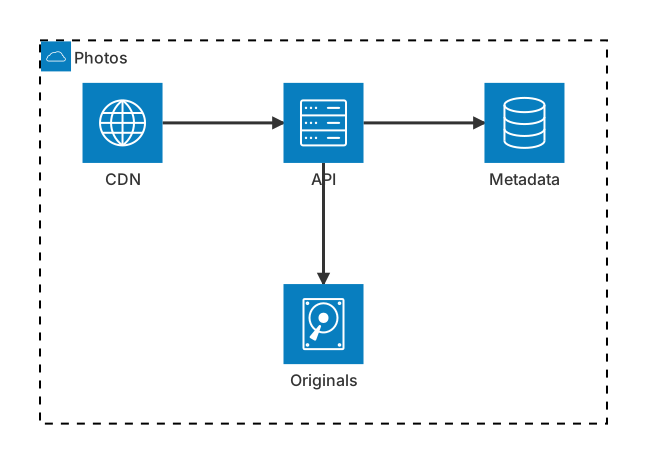
architecture-beta
    group cloud(cloud)[Photos]
    service edge(internet)[CDN] in cloud
    service api(server)[API] in cloud
    service db(database)[Metadata] in cloud
    service bucket(disk)[Originals] in cloud
    edge:R --> L:api
    api:R --> L:db
    api:B --> T:bucket
Open the editor and change the label Originals to Renders if the bucket's job changed. The id can stay bucket so the edge lines still match. Add a second database only if you also name its icon and the side the arrow uses. An unnamed side is how a working file becomes a blank preview.
Replacing a fictional icon
Use an AI edit when the keyword is wrong or several icons are illegal. "Rewrite as architecture-beta. Group cloud icon cloud label Photos. Services edge internet, api server, db database, bucket disk, all in cloud. Edges edge right to api left, api right to db left, api bottom to bucket top. Delete lambda, kafka, and any service I did not name." That is a structural repair and a fair generation.
Edit one token when the shape is right. Change [Originals] to [Renders]. Swap disk for database if you mis-assigned an icon. Add :R and L: to an edge that lost its sides. Delete an unused junction line. Hand editing stays free. The declarations are one service per line. You can see an illegal icon name without help.
If nothing renders, the first check is the edge pattern id:R --> L:id. The second check is the icon name against the five built-ins. The third is a missing in cloud on a service you meant to enclose. Fix the flagged line in the editor. Leave the services that already have legal icons.
Quota, price, and free edits
Five free AI uses is the whole free set. They do not refill daily. They attach to the account and the IP, and other diagram types spend the same five. An architecture draft with the icon constraint often needs two tries, because the first try names logos. Spend the second try on the icon list. Change a label by typing after that.
The pricing page lists Starter at $6.99 a month with 500 AI conversations a month, and Pro at $11.99 a month with unlimited AI under fair use. Fair use is the backstop against a script. Hand editing stays free on the free plan after the five uses are gone. Export stays available. You can revise a service label in the editor during a review and never prompt again.
C4 is the better picture when the claim is "this system is external" and the audience expects that vocabulary. Block diagrams are better when the claim is a row on a grid. Both sit on the AI diagram generator index. Use this page when you want groups, the built-in icons, and edges that name their sides.
Frequently asked questions
How do I generate a architecture diagram with AI?
Describe the architecture diagram you need in the box above and click Generate. The AI writes valid Mermaid architecture diagram code that renders instantly, and you can open it in the editor to refine it.
Is the AI architecture diagram generator free?
You can try it free: 5 AI generations in total, not per day, with no sign-up. Starter includes 500 AI conversations a month and Pro is unlimited. Manual editing stays available, and every plan can still download a PNG. JPG, SVG and PDF are on Pro.
Can I edit the generated architecture diagram?
Absolutely. The output is plain Mermaid code — edit it by hand in the live editor, or ask the AI for changes in natural language.